Booking Functionality
Booking Edit
A booking has many different functions.
Booking Header
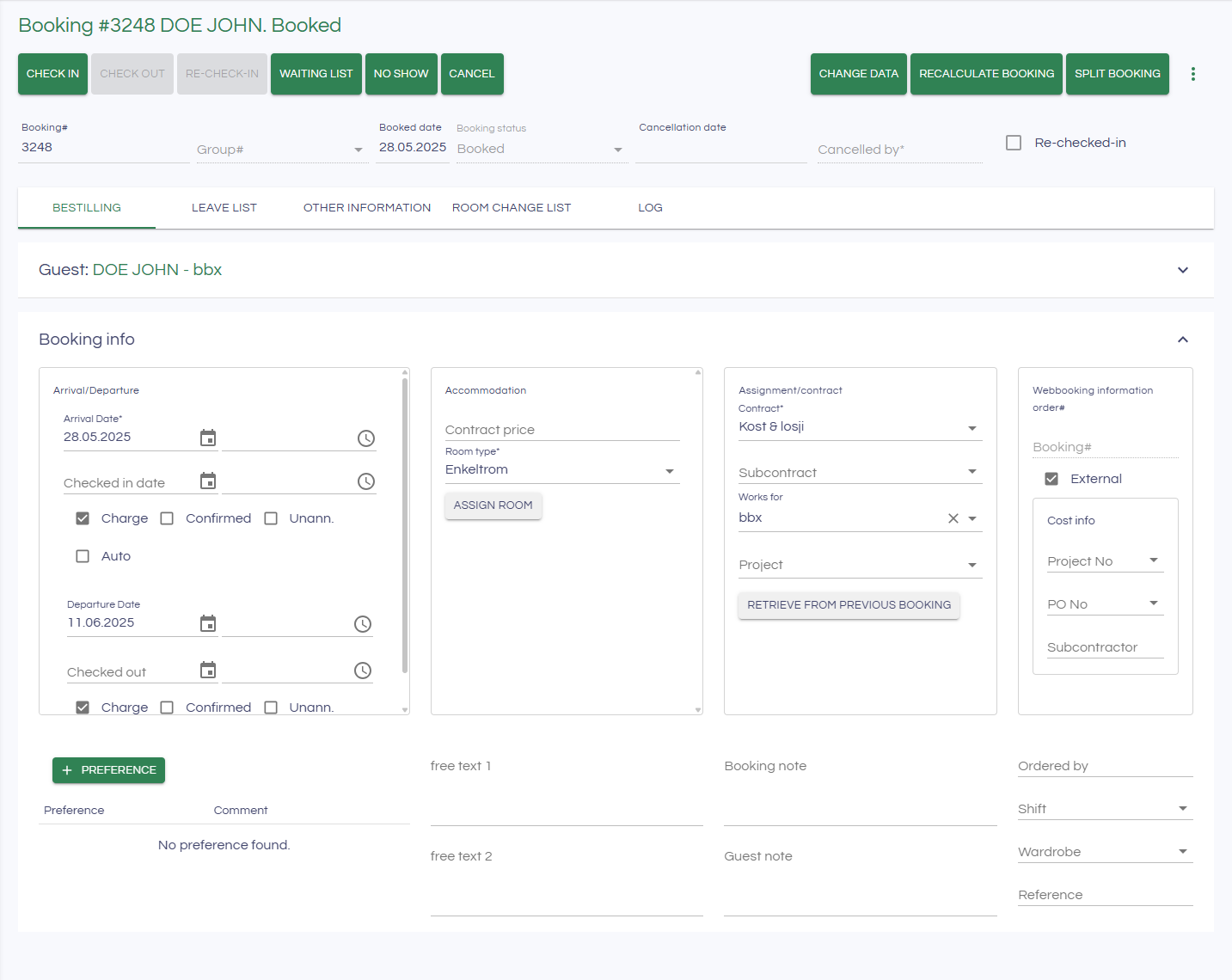
The booking header contains information about the booking number, name, and status, along with several different functions.
You can check in, check out, put a booking on the waiting list, cancel the booking, change data, split the booking, etc.

Check-in
To check in a booking, a few things must be in place:
Arrival date
The booking must be assigned a room.
Assigning a Room Within the Booking
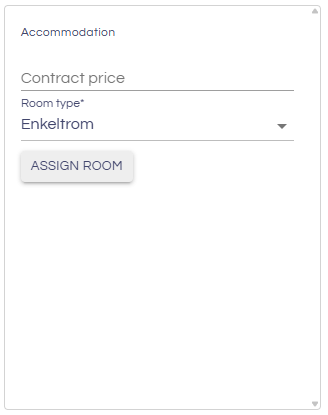
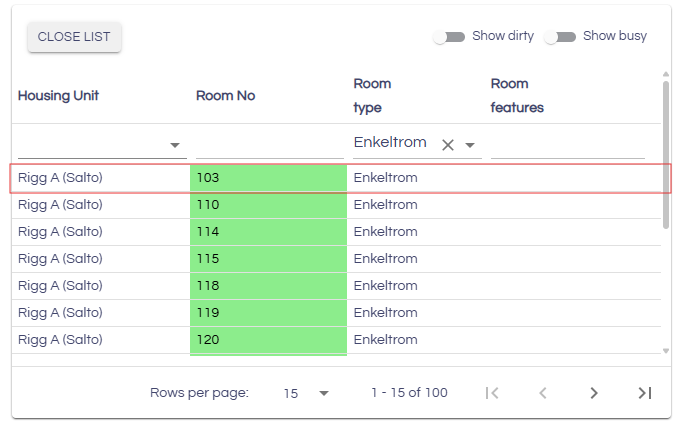
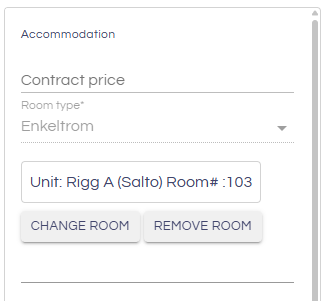
Click on "Assign Room" to bring up a list of rooms filtered by the selected room type. You can search and filter for a specific room. To assign a room, click the room you want. It is also possible to remove or change the assigned room.
After assigning a room, click "Check In" to check in the booking.
Check-out
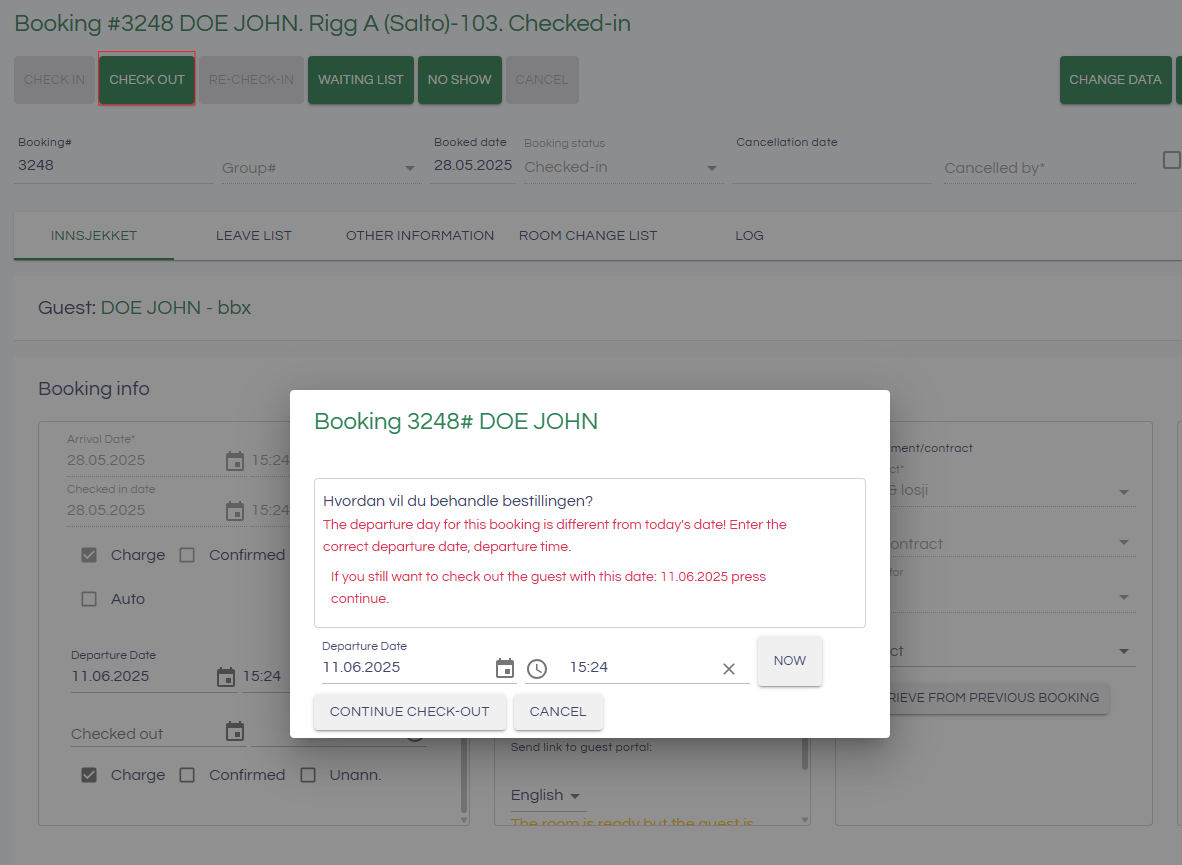
To check out, click the "Check Out" button.
If the booking has a departure date different from today's date, a dialog will appear where you can choose to change the departure date, or you can click "Continue Check-out" without changing the date.
Re-Check-in
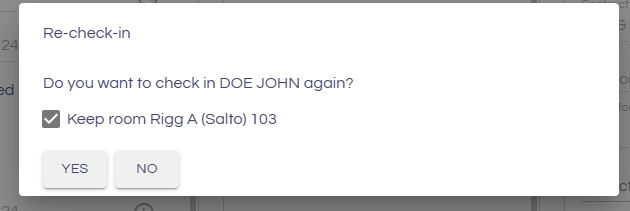
Checked-out bookings can be checked in again by clicking the "Re-Check-in" button.
You will be given the option to keep the original room or assign a new one.
After choosing to re-check in a booking, the departure date is set to the day after the current date.
Other Functions

Waiting List: Used to keep track of bookings that are set aside, for example if there is not enough space to accommodate all bookings.
No Show: Sets the booking status to "No Show" if the guest has not shown up.
Cancel: Sets the booking to "Cancelled".
Edit Data: Opens all locked fields for editing.
Recalculate Booking: Removes all transactions on the booking and generates new ones.
Guest Functionality
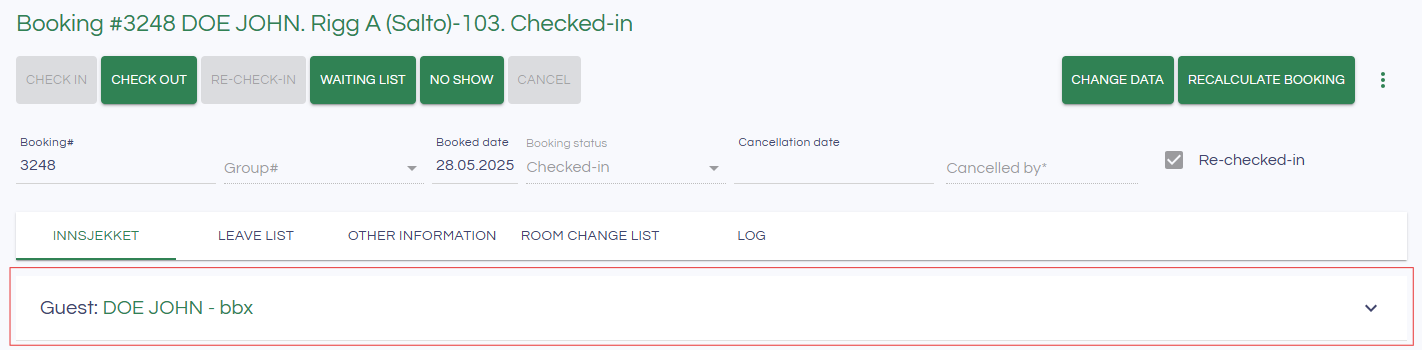
To view guest information, click the guest's name.
Here you can view various information about the guest, change the guest, or enter the guest profile to edit their information. You can also register allergies for the guest.

Changing the Guest on a Booking
To change the guest on a booking, click the icon marked in the image below to bring up the guest list.
You will see the guest list in a dialog. You can search the list to find the guest you want to assign. Click "Select Guest" to assign the selected guest to the booking.
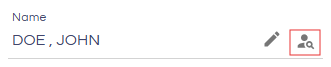
You can also enter the guest's profile to edit it by clicking the pencil icon next to the guest list icon.
Allergies
You can register allergies for guests, which is useful for meal and cafeteria planning and helps keep track of dietary needs among the residents. Reports can be generated and sent to cafeteria staff.
To add an allergy to a guest, click "New Allergy", select the relevant allergy, and optionally add a comment.
🇬🇧 English version
Leave Setup
There are several ways to set up leave for bookings:
Single leave
Period rotation
Fixed leave
Adding leave to a booking
To add leave to a booking, go to the Leave List tab.
Single leave
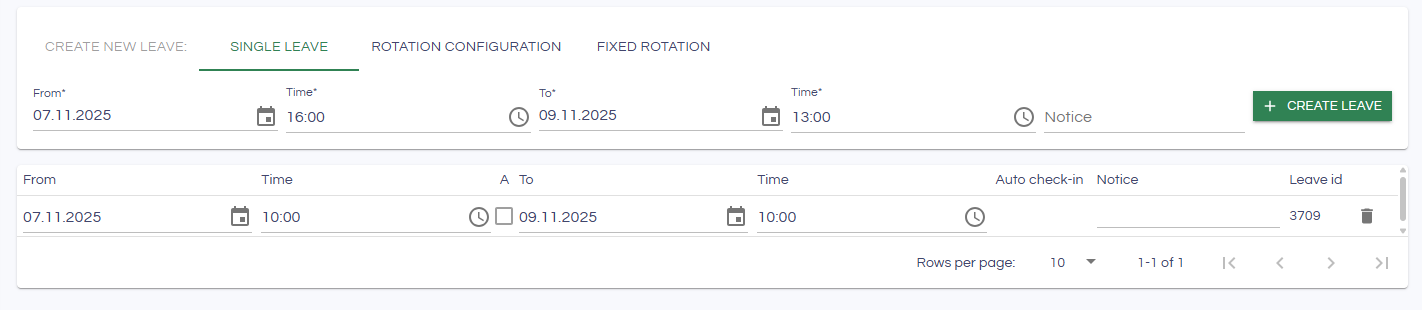
Enter the date, time, and an optional comment, then click “Create leave”.
A leave period cannot be outside the booking period, and different leaves cannot overlap.
To manually activate a leave, check the “A” box.
Period rotation
To create a recurring pattern of leaves, go to the Rotation configuration sub-tab.
There you can specify:
The day of the week the leave should start
The duration (number of days) for each leave
The date range you want to generate leaves for
Then click “Generate leaves” to create the leave periods for the entire range.

Fixed rotation
Fixed rotation works a bit differently from the other methods.
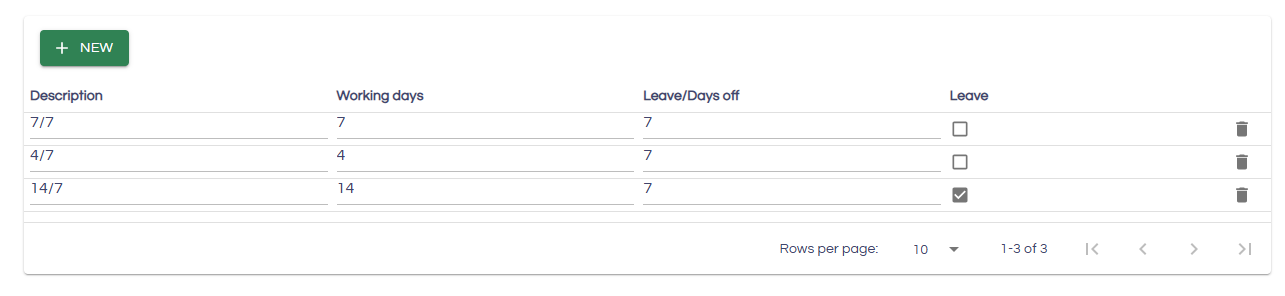
Here, you select a rotation that has already been defined under System → Configuration, in the “Rotation” tab.
Enter the rotation name, and specify the number of days on and days off so it appears in the booking’s leave list.
In the “Rotation” dropdown, choose the rotation you want to apply to the booking, then click “Create fixed rotation.”
Leave entries will automatically be created for the entire booking period.
If you change the arrival or departure date of the booking, the leave entries will automatically be updated (deleted/created) according to the new dates.