Leave list
Leave list
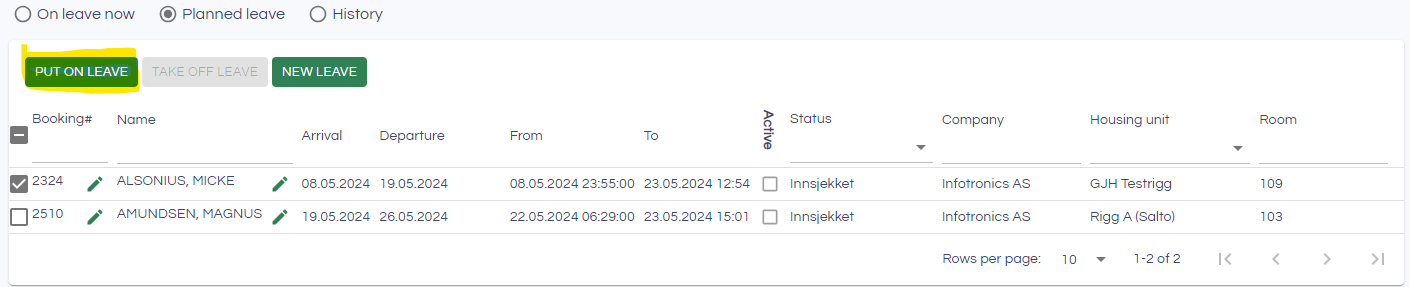
Under leaves, you can manage and add new leaves. Leaves are used when a guest keeps his booking for extended periods, but is temporarily out of the camp for one night or more. Registering leaves is important, in order to have full overview of the people actually in the camp at all times.
You have three choices about what you want to see: On leave now, Planned leave and History.
Create a new leave
To create new leaves click the "New leave" button.
- Select the bookings you want to create a leav for. You do this by ticking the check boxes on the bookings.
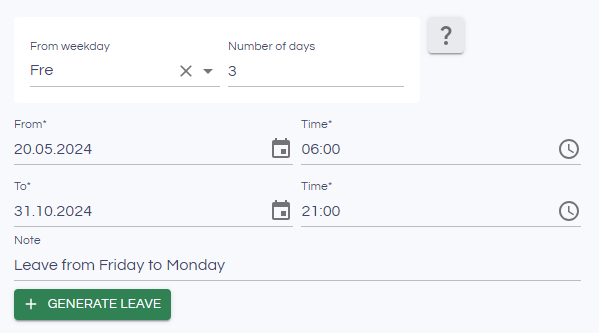
- You can create several leave lines per booking that repeat. Choose the day of the week and the number of days the leave should last. From and To date will then define how long a period leaves will be made for. If a time period of three weeks has been selected and the booking(s) should have a Leave every Friday for three days, you choose from Friday, three days and the period. Leaves will then be generated for the entire period and the booking will have leaves Friday-Monday in that period.
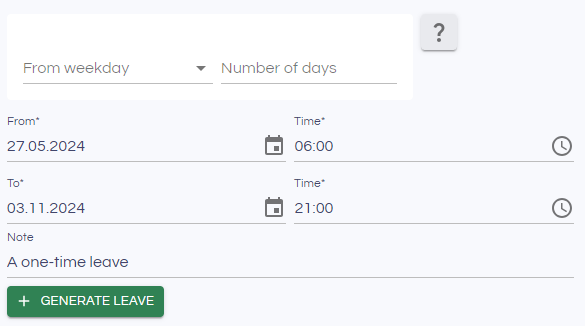
If From weekday and number of days is not selected, a leave from the From date until the To date will be created.
Take off leave
To end leaves from the leave list, select the leaves to be finished and press "Take off leave".

Put on leave
Activating/putting a booking on leave is done from the Planned leave view. Putting bookings on leaves can only be done within the leave period.
Select the bookings you want to put on leave, and click Put on leave.