
Setup and import of bookings from Webbooking - v2
About Webbooking and versions
Web booking can be used by external partners/customers/contractors to create bookings for import to InfoCamp CIS. This can be very labor-saving in a hectic everyday life at the camp.
This article describes Webbooking version 2. In this version, the information is fully integrated between InfoCamp CIS and Webbooking. Thus, the coordinator at the customer and the booking manager at the camp have access to and share the same information about guests and company. Of course, the coordinator only has access to information about his/her guests and company.
New users/coordinators
Self-registration of company and user
New users/coordinators can easily register and their company details by going to the login page for your camp. The login page has the address https://app.infotronics.no/Identity/Account/Login/{campnummer}, where {campnummer} is provided by Infotronics. NB: The camp number must be included in the address so that we know which camp the registration should be sent to.
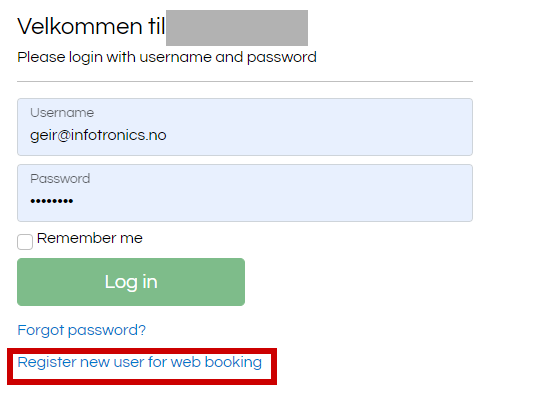
By clicking Register new user for web booking, the coordinator will be able to register the necessary information:
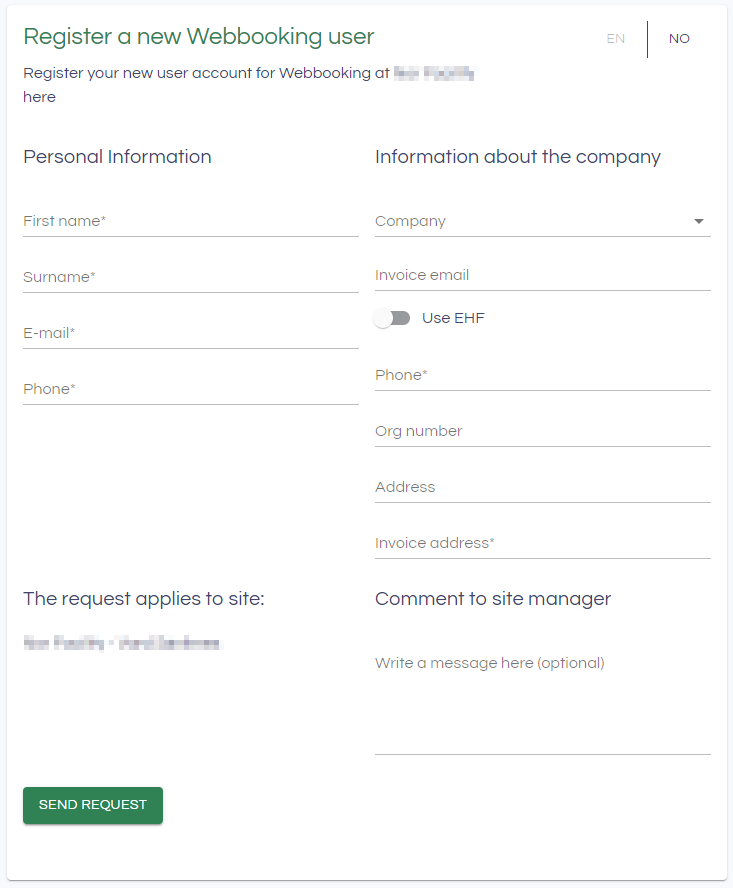
The Company field can be used both to search for existing companies or to create a new company.
Manage users
When a new user has registered, an email will be sent to the provided email address for the camp, and you will find the new user ready for processing under CIS->Administration->Users.
If you select Show only unverified users, you will only see those that you need to do something about:

Click the pencil icon to process the user:
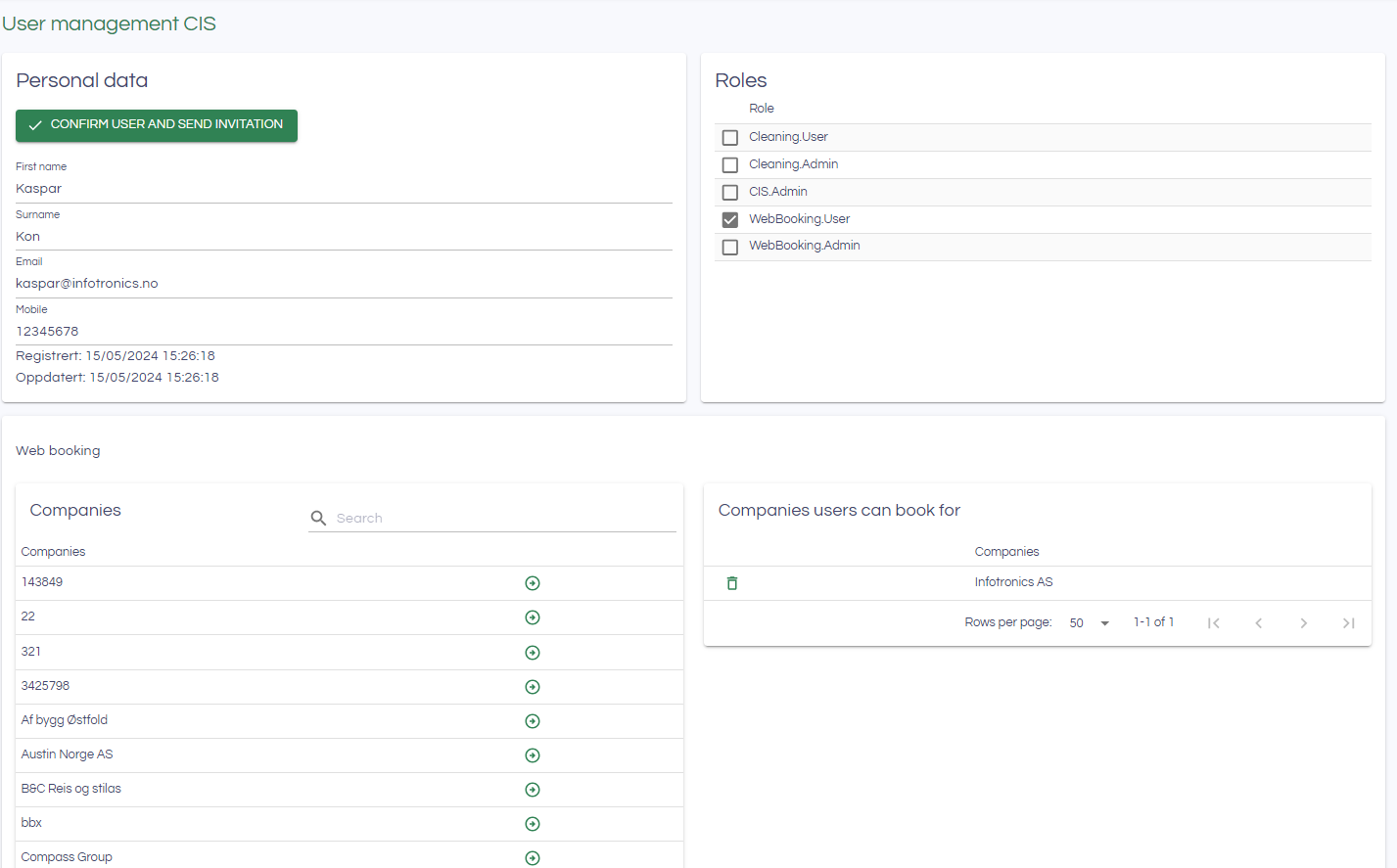
The user will automatically have access to book for the company he/she has registered with. If the user also should be able to book for other companies, they are added by finding them under Companies and pressing the green arrow.
When the information has been checked and OK, press Confirm user and send invitation. He/she will then receive an email with instructions to log in. You can find more information about Web booking for a coordinator here.
Manual creation of users
You can also create a new user for a coordinator yourself. Click the the Add user button in the Users list, and fill in the email address of the new user. Then add the information as shown above for the user. Remember to select Webbooking.User as the role, and to choose which company(s) the user should be able to register requests on behalf of.
Webbooking imports
When new web booking requests are submitted to InfoCamp CIS, indicators of this are shown at the top of the screen:

By pressing the button with screen and the number 2 in the image above, the list of Web bookings will be displayed (you will also find the menu item Web booking in the navigation on the left):

By clicking the pencil icon, the request can be processed.
Approve requests
Detail information about the Webbooking request is shown. The specific requested rooms can be selected in the list:
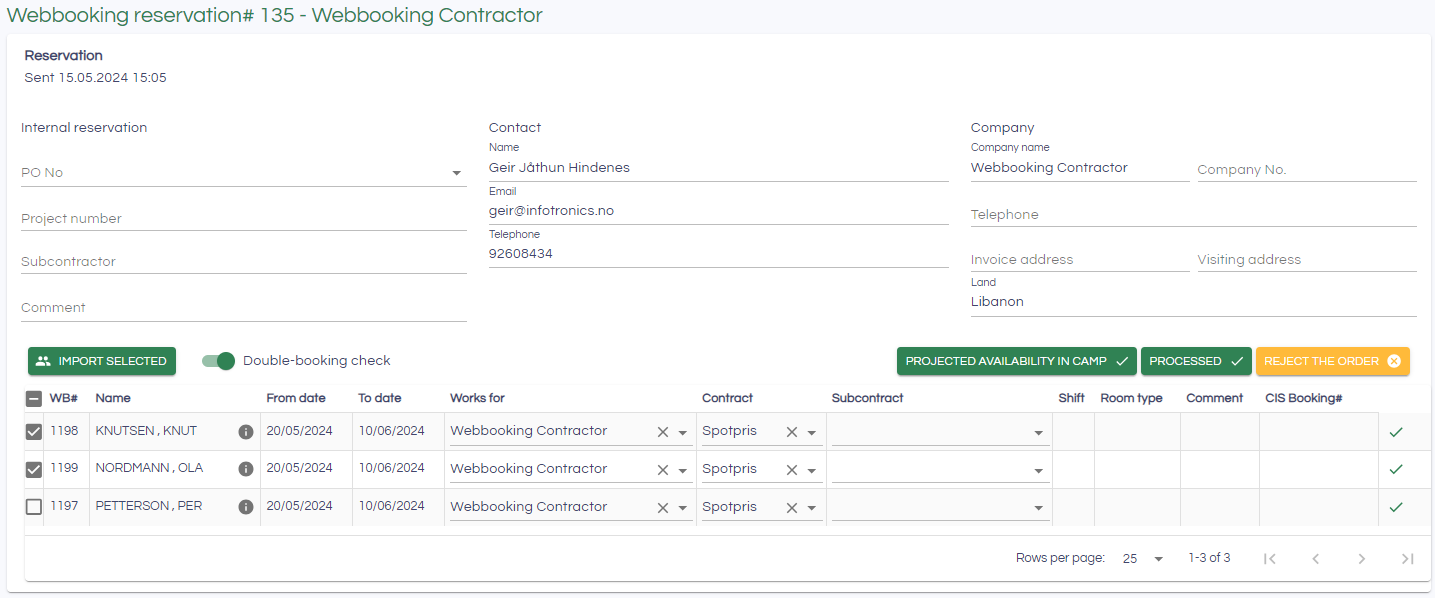
The information should be reviewed, possibly the contract and job can be changed for the individual guest. The information icon to the right of the name shows more information about the guest when you hover the mouse over it.
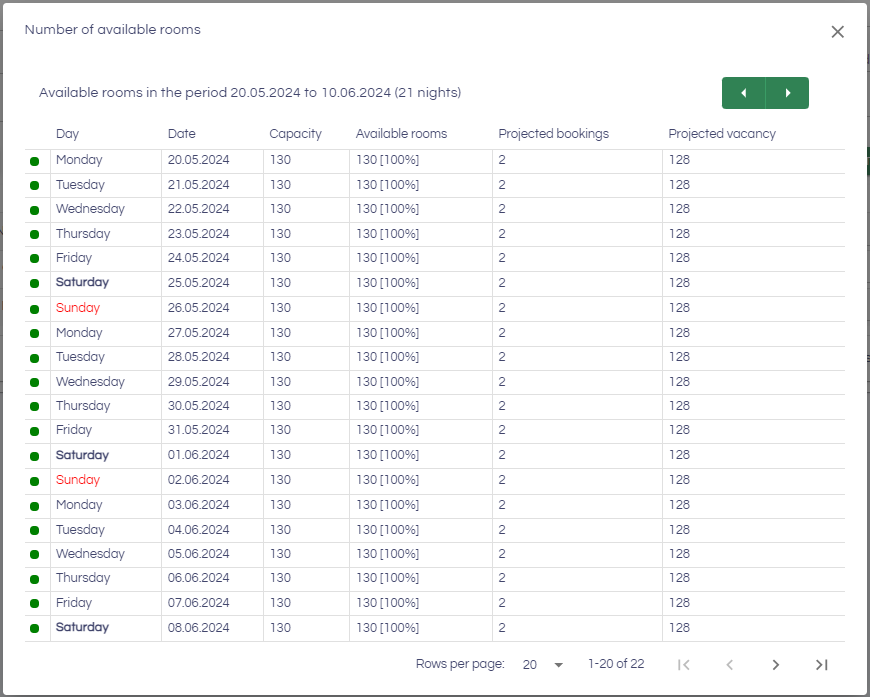
By selecting one, several or all bookings in the list, you can check these against the capacity in the camp by pressing the button Projected availability in camp. A dialog shows the overview of capacity per day after the bookings have been imported:
To import and create bookings in InfoCamp CIS, you select the one/them/all in the list, and press Import selected:
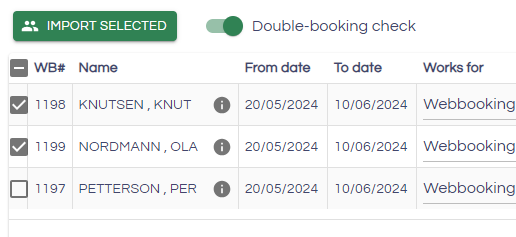
An InfoCamp CIS booking will then be created for each of the rows.
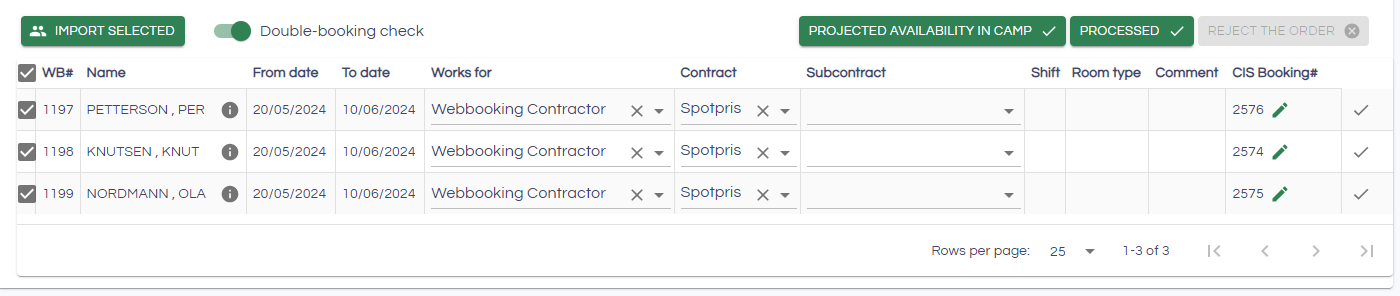
The Booking ID appears in the list, and you can navigate to it by pressing the pencil icon.
If Double booking check is switched on as shown above, you will receive a message if there is already a booking for this guest when you import. You can choose to import anyway, or go back to reject.
The request as shown above is now complete, click Processed to mark the request as handled.
Reject requests
If you press Processed without all the rows having been imported to InfoCamp CIS bookings, those that have not been imported will be rejected. Pressing Reject Order without any of the rows being imported will have the same effect.
Process changes
the coordinator can request changes to the date, swap/add a guest, change shifts, and cancel the booking
If the coordinator makes such a change, it will be shown with an exclamation mark in the list:
When you access the request, you will see what has been changed:

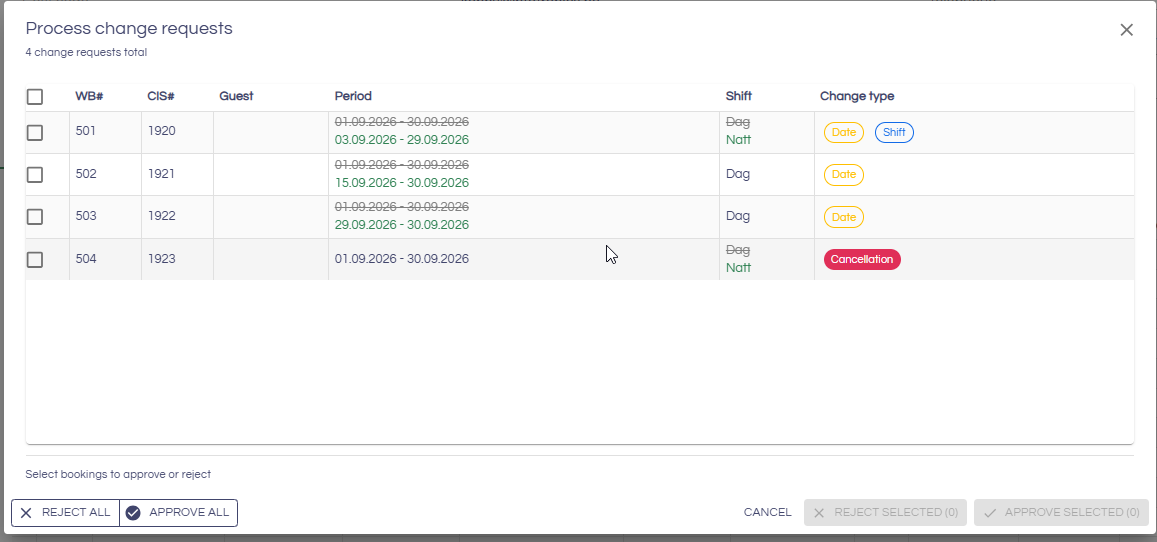
To process changes for one or more bookings, click the «Process changes» button at the top of the page. You will then get an overview of all requested changes. Choose either «Reject all» or «Approve all», or process individual changes manually by making a selection.
NOTE: One email is sent per process.

Communication with coordinator/booker
When a request has been processed, it will appear under Processed in the coordinator's overview and they will receive an email.