New booking
Overview
New single bookings can be created in two ways:
- Using the New booking menu item as described in this article
- Using the Booking overview as described here
To create a new booking, select from and to date. You will then see the number of available rooms for your rig in the table below:
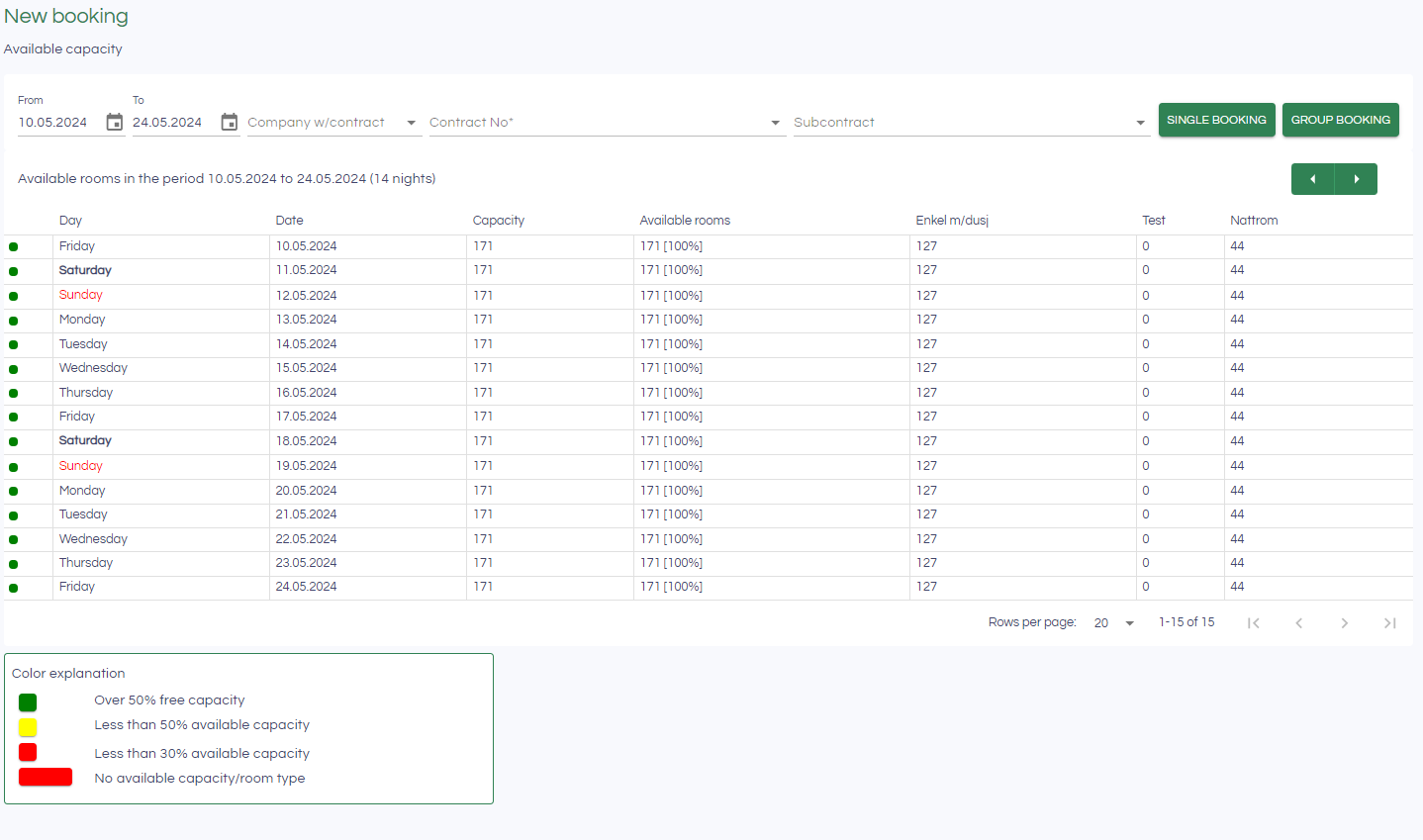
- Select contract and any subcontract.
In order to create a booking, you must select a contract. Some contracts require that you have a subcontract selected in addition. The partial contract field will then receive a star in the partial contract field. - Select arrival and departure date
When you enter the new booking page, the arrival date is automatically selected as today's date and the departure date is set 14 days in advance. if you want other dates, you can change it manually. - Select the type of Booking
You have two choices when it comes to creating bookings. "Single booking" and "Group booking". If you only want to book one person who is not part of any group, you choose single booking. For larger groups, use the group booking button.
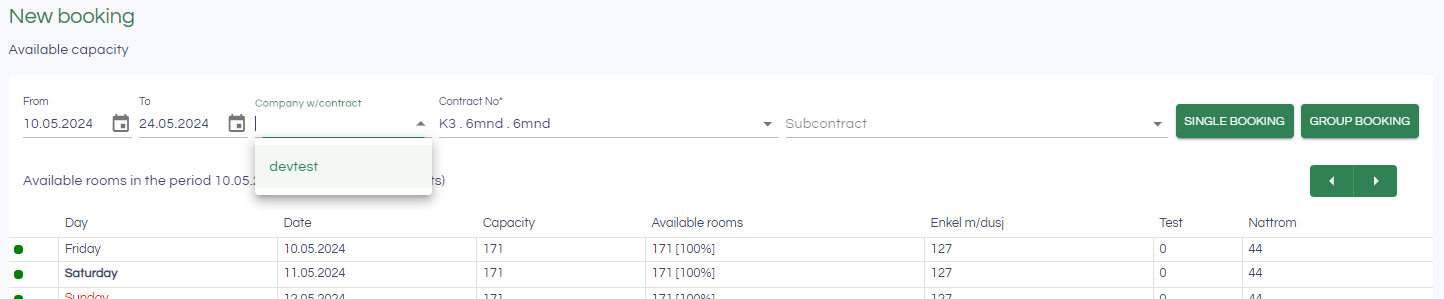
Company w/contract
You can also choose between companies that have been set up with a standard contract/standard subcontract. If you choose a company with standard contract set, the contract and any subcontracts are selected automatically. Choosing a company with a contract is optional. The field is deactivated if no company has a standard contract. The search box only contains companies with a standard contract set.
The company selected will be set under "Works for" regardless of the company that is set on the guest.
Single booking
After you have clicked on "Single booking", a dialog will appear, where you can choose which guest should be added to the booking. There are several filters you can use: filter by name, company, email and phone number:
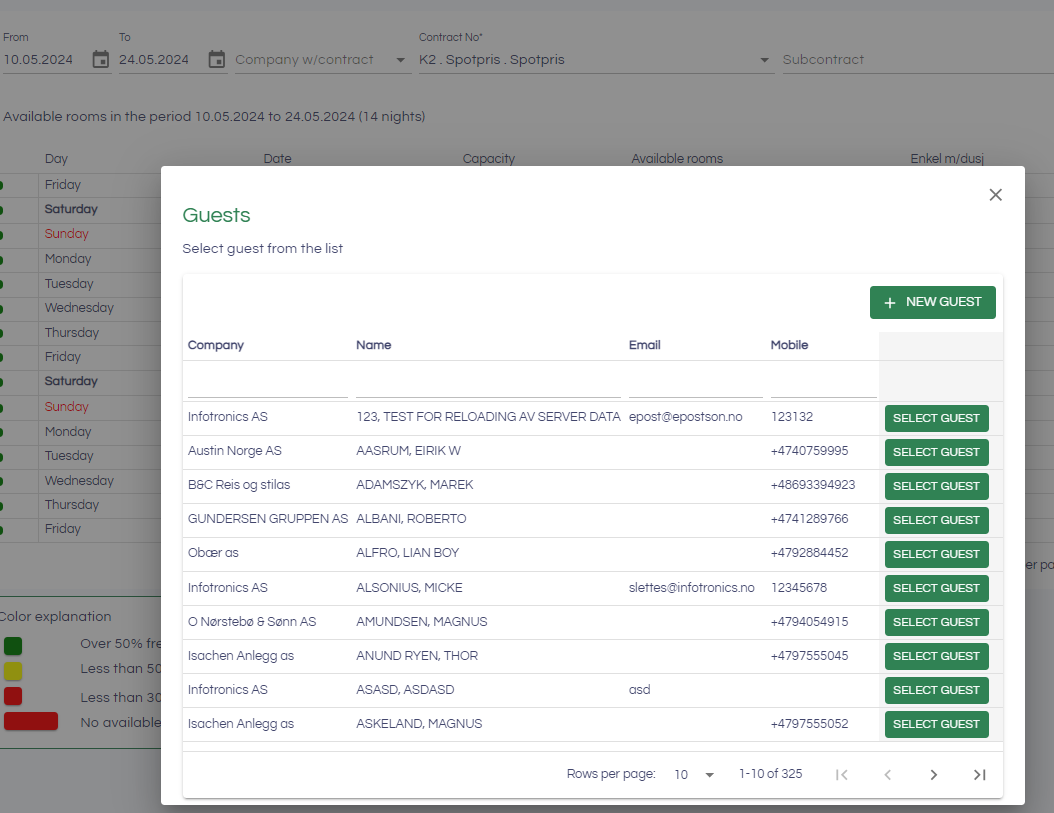
Find the guest to be booked and press "Select Guest". Confirm your selection, the booking will be created and you will automatically be taken to the new booking.
New guest
If you cannot find the guest, it is possible to create both a guest and a company. After creation, the guest will automatically be selected and the booking will be generated. To do this, press the "New Guest" button, which will open a form to create a new guest.
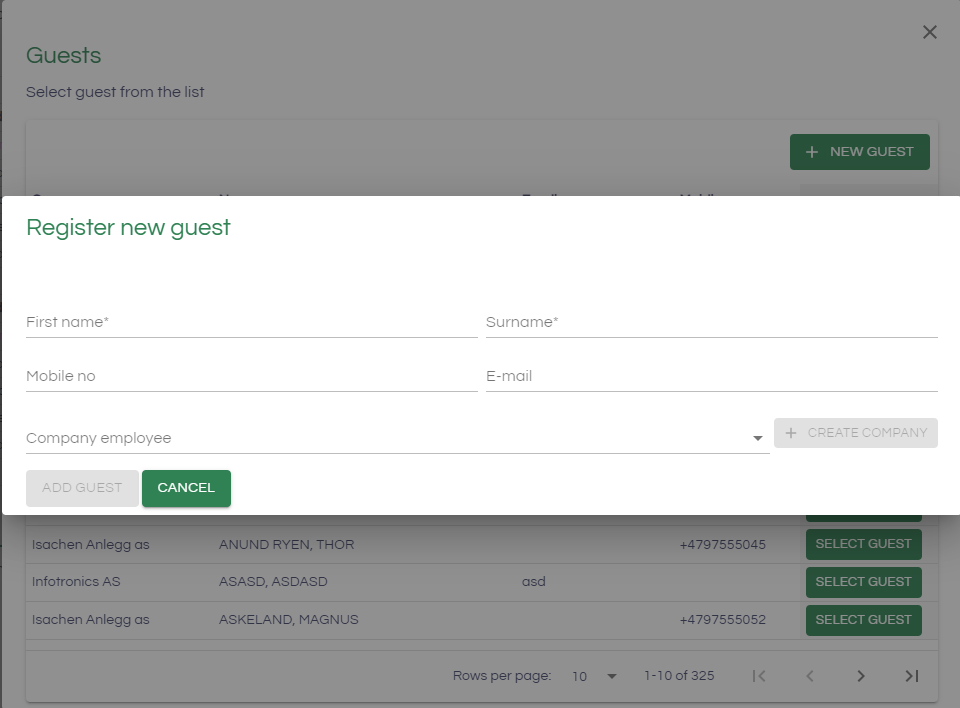
Guests who are created in this way are missing some information. Missing information can be entered in the guest list at Administration->Guests later.
Group booking
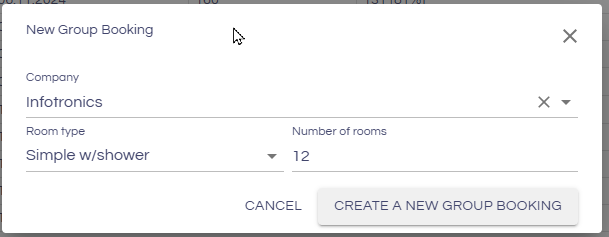
To create a group booking, click "Group booking". Select the company for which to create a group booking, and the type and number of rooms requested. The group booking will be created. A more detailed review of group bookings can be found here