Booking list
Introduction
The booking list gives you an overview of all bookings, current guests, departures etc. The various elements are explained below:
Filters
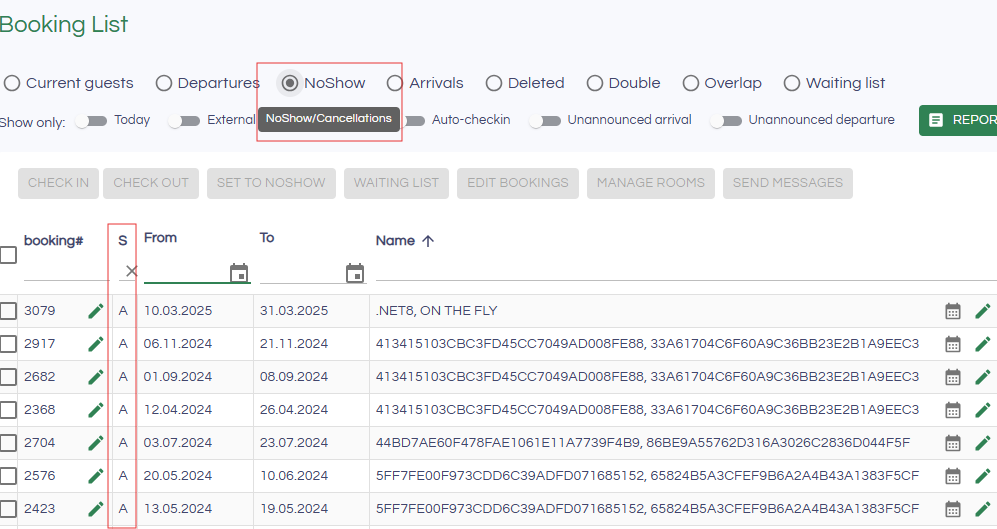
When you first enter the booking list, the currently checked in guest are shown.
Use the radio buttons to filter between bookings with various status in the camp:

The Show only filter can be used for further filtering based on the properties of the bookings in the list:

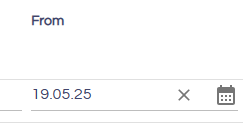
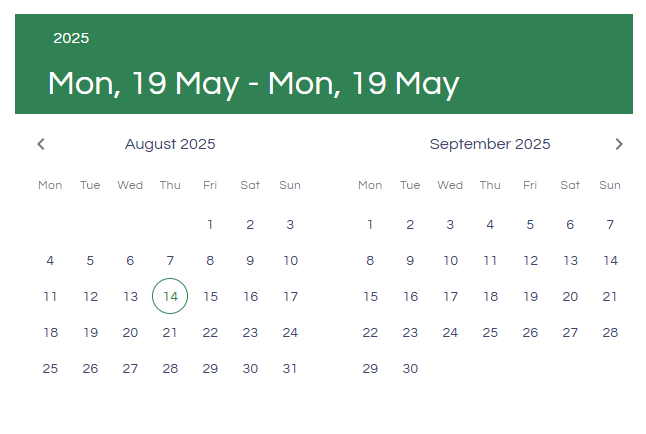
The arrival and departure filter allows you to enter various date formats. For example, if you type 0105, you will get May 1st of the current year. If you type only 01, you will get the 1st of the current month. You can also enter 01-04 to get all arrival and check-in dates between the 1st and 4th of the current month and year. It is also possible to enter full dates to specify the exact year and month. Additionally, you can use the date picker to view only a single date – by double-clicking on a date in the date range picker, only that date will be selected.
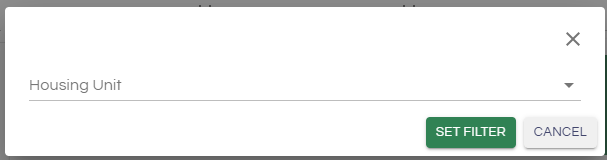
To filter by room, type Housingunit-roomnr. You can also click the house icon in the input field to limit the view to specific housing units.

Sorting
The booking list can be sorted on some selected fields by clicking the header: To, From, Booking#, Name and Company.

Column selection
It is possible to expand the booking list with additional columns.
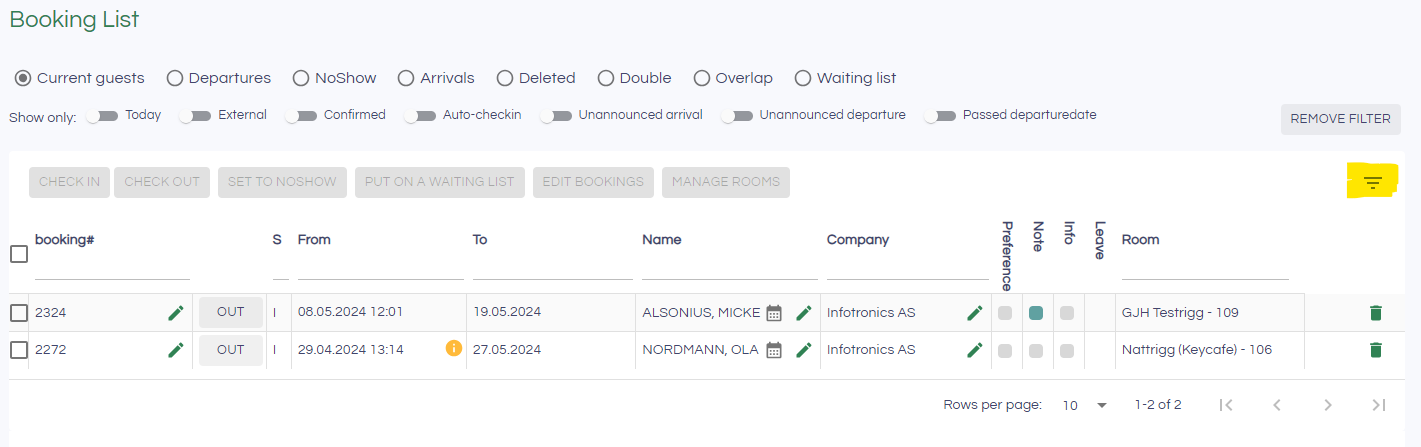
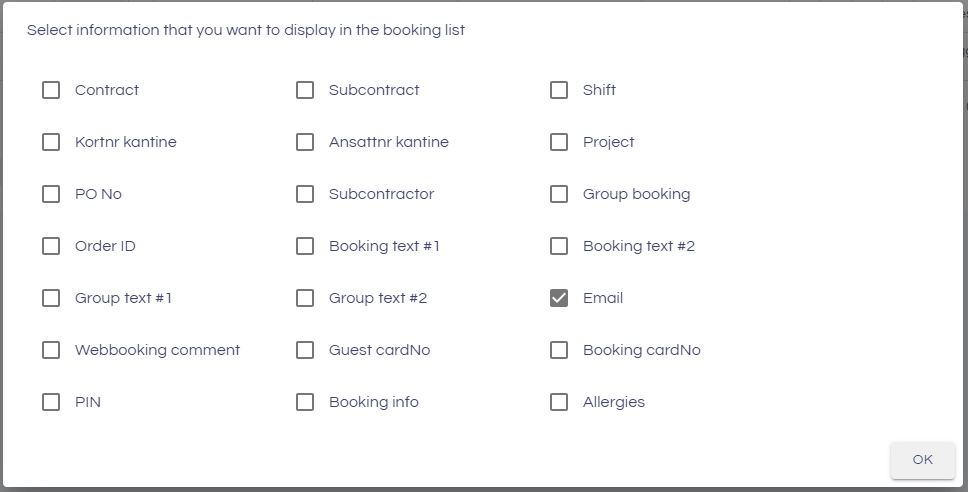
Press the filter icon (marked with yellow in the image below). Choose which columns should be displayed in addition to the standard columns. You do this by checking the columns that you want to be displayed. Press OK and the selection is remembered for the next time.
Bulk edit bookings
By ticking the checkboxes to the left of one or more bookings, you will be able to make changes to the selected bookings at the same time.
The action buttons will be enabled (green) and disabled (grey) based on the status of the selected bookings.
- Check in
Checks in the selected bookings - Check out
Checks out the selected bookings - Set to noshow
Sets the selected bookings to noshow - Put on waitinglist
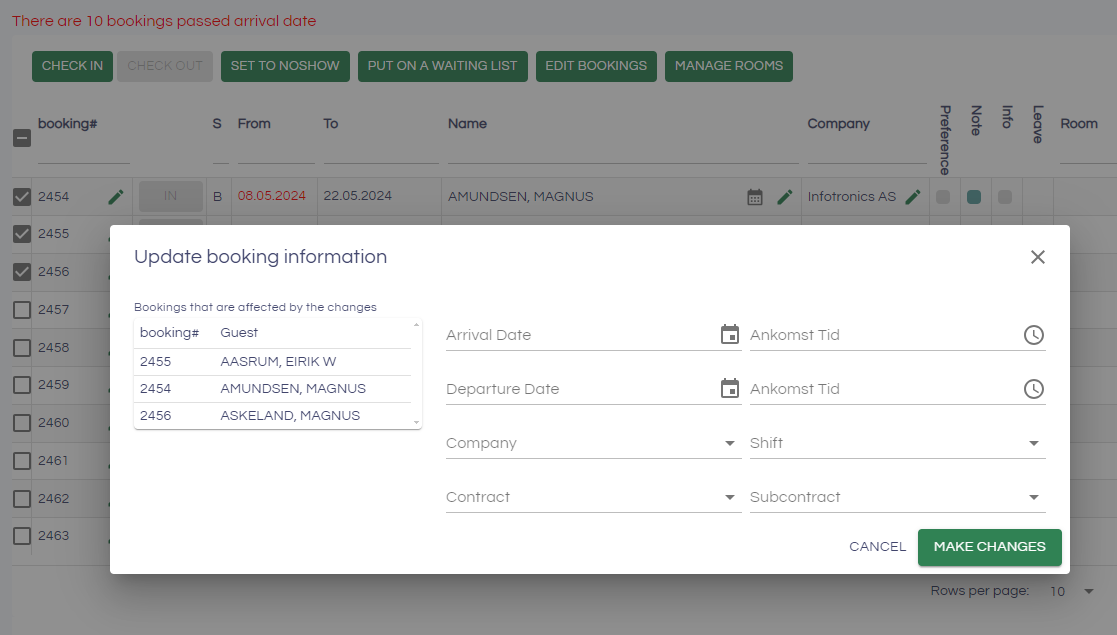
Moves the selected bookings to the waiting list - Edit bookings
Enables edit of key properties of the selected bookings - Manage rooms
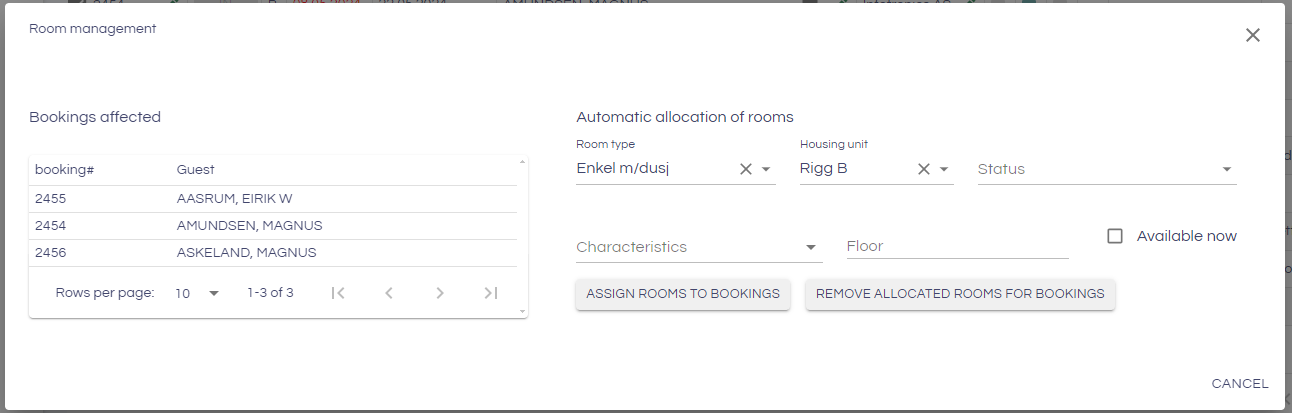
Allows bulk allocation (or removal) of rooms from the selected bookings
The dropdowns to the right allow filtering of the rooms to be used for automatic room allocation. Click Assign rooms to bookings to allocate the bookings to the rooms that corresponds with the filters selected.
Reports
Below the booking list you will find buttons for reports. Various reports are available for extracting information from the booking system:
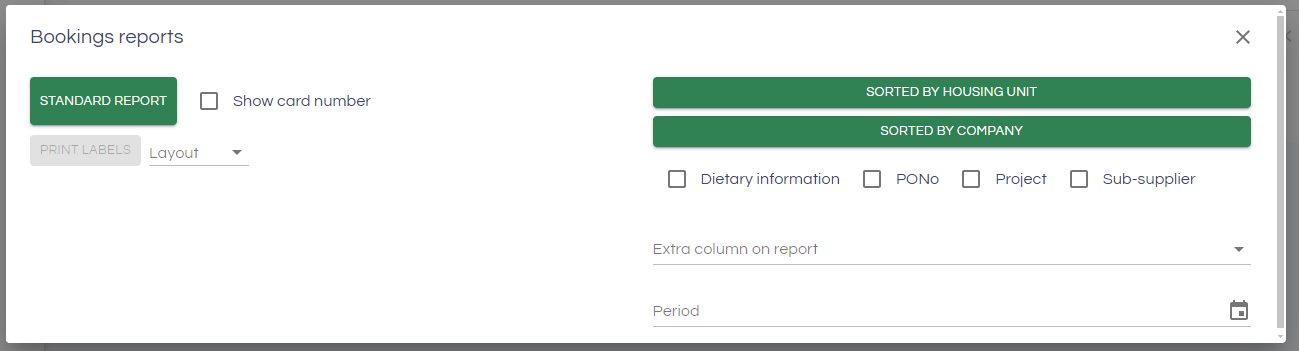
The standard report lists out the bookings from the current view/selection of the booking list. The report can be sorted by Housing unit and Company by clicking the corresponding buttons.
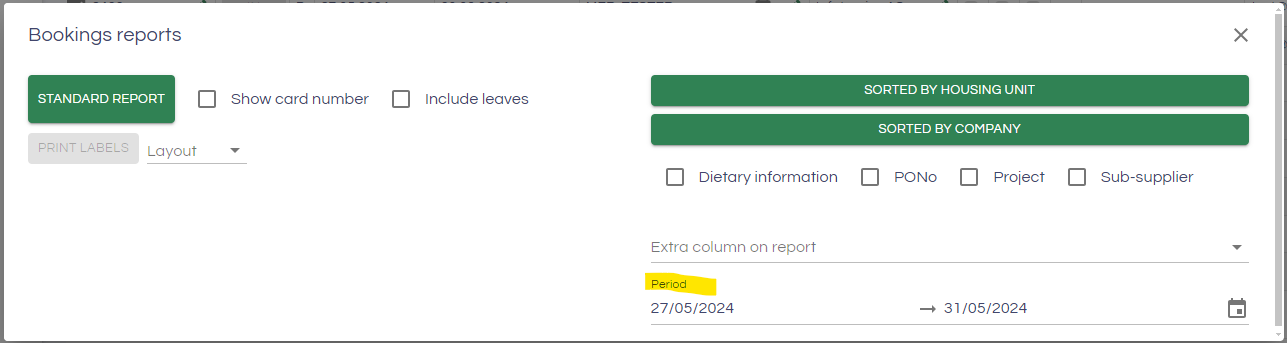
If a selection is made in Period, only bookings corresponding to the period selected will be included.
See cancelled bookings
To see cancelled bookings go to "NoShow" and write an "A" To see all cancelled bookings in the bookinglist.