Guest portal
The guest portal is the guest's digital interface to InfoCamp CIS. The portal will continuously be expanded with new functionality, as of now there are the following possibilities:
- Unlocking rooms with SaltoKS locks
- Pick up keys from the KeyCafe key cabinet
- Register leave
- Check out
The guest portal - Setup
The guest portal allows you to set up various content for the guests as well as help texts for each housing unit, e.g to describe where the key cabinet is or which entrance door is which. The functionality is described in more detail at the end of this article.
Guest portal - Login
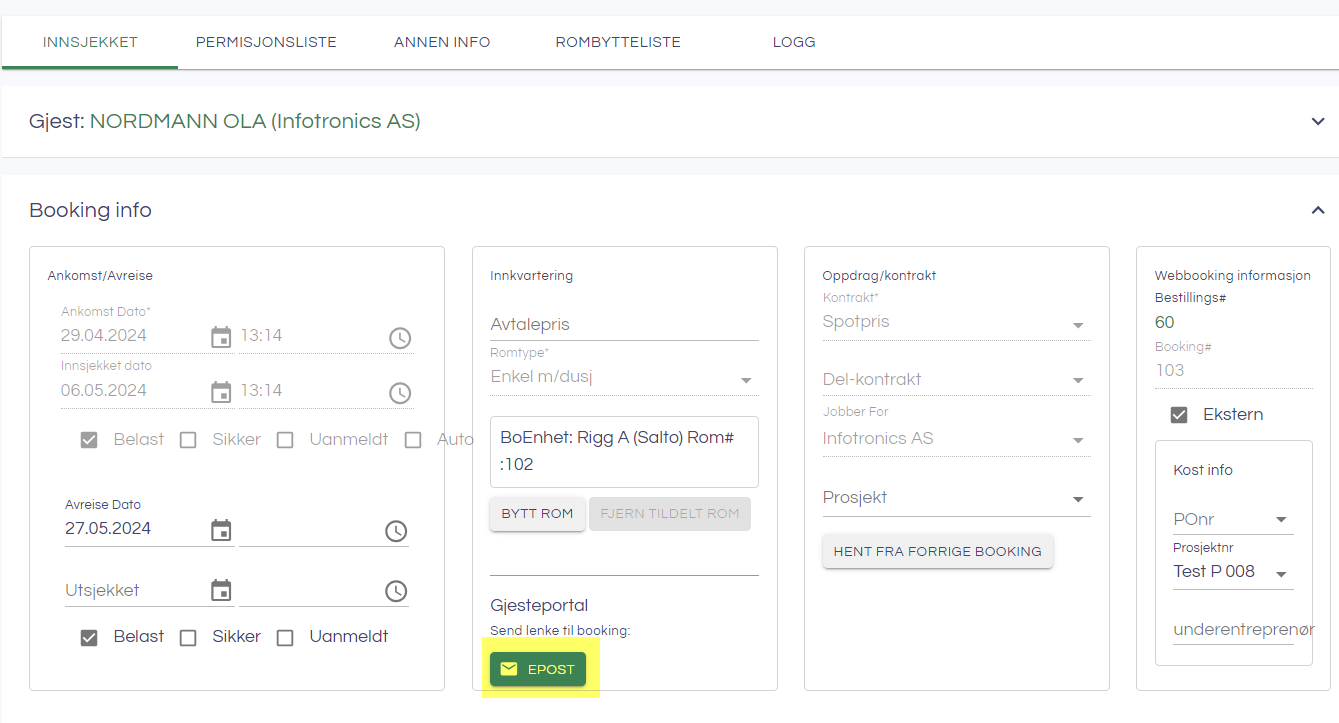
When the e-mail address and/or mobile phone number of the guest has been registered in InfoCamp CIS, a message can be sent to the guest that the guest portal is ready for login:
The guest will then receive an email or message based on the templates under Contents, e.g:
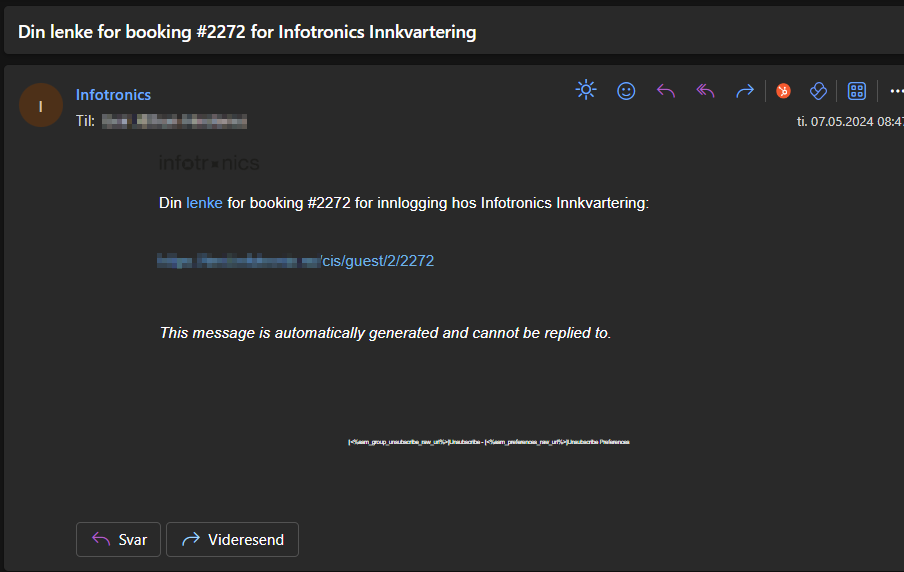
By clicking on the link, the guest will be directed to the login page of the guest portal. The booking number will already be pre-filled, but the guest still needs to log in by entering a one-time password that will be generated after clicking on "Send one-time code." The login images are displayed below.
The login is valid on the device/mobile for as long as the stay lasts (max 30 days). During this period, the guest will not need to log in again, and when he/she clicks on the link for the guest portal as shown above will go straight to the logged in page as shown on the far right above.
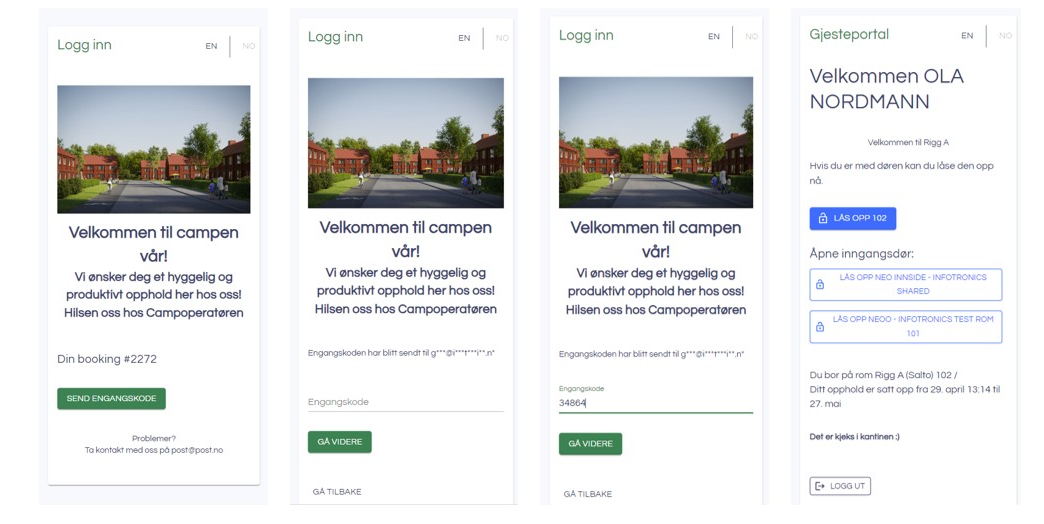
SaltoKS integration
After logging in, the guest can open the room and any entrance doors from their mobile - without installing any app. The relevant doors (door to the room and any common areas) will appear as buttons in the portal, and by pressing these the SaltoKS locks can be opened.
Manage content
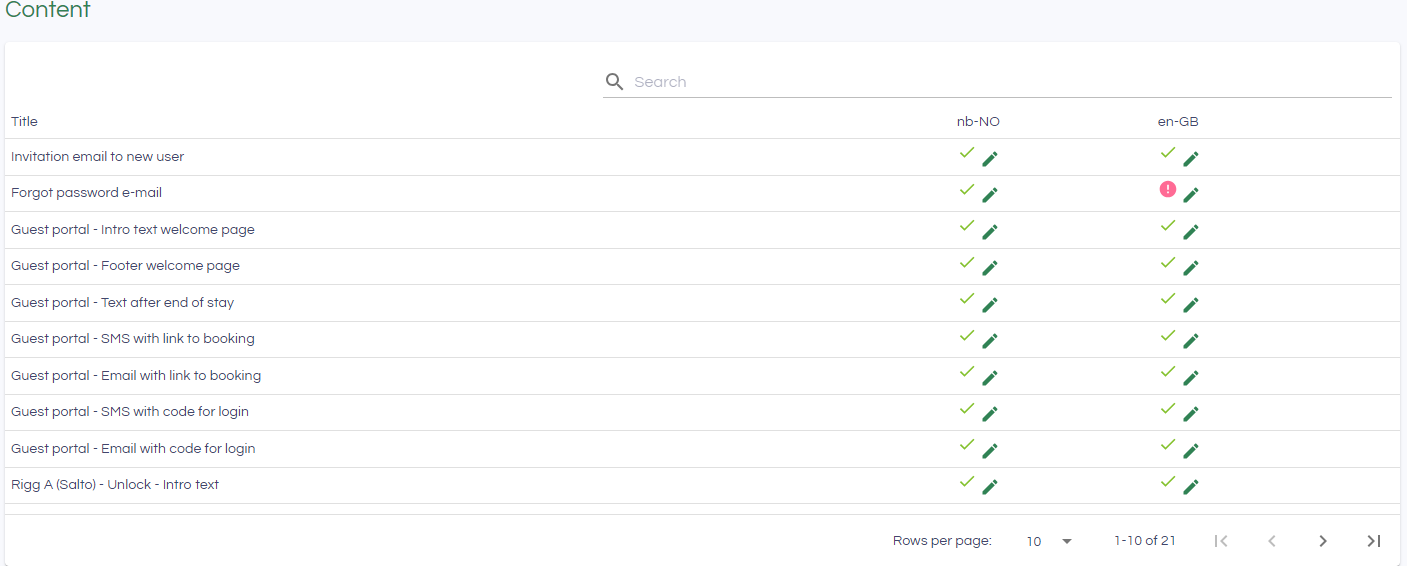
Under Administration->Content, you have the option to adjust content that is used in communication with users and guests.
| Element | Beskrivelse |
| Invitation email to new user | Email template used when new users are added to InfoCamp CIS |
| Forgot password e-mail | Email template for Forgotten password |
| Guest portal - Intro text welcome page | Appears on the front page/welcome page of the guest portal |
| Guest portal - Footer welcome page | Footer on the front page/welcome page |
| Guest portal - Text after end of stay | Appears when the guest has checked out in the guest portal |
| Guest portal - SMS with link to booking | Template for SMS that is used when information about the guest portal is sent from booking/booking overview |
| Guest portal - Email with link to booking | Template for email that is used when information about the guest portal is sent from booking/booking overview |
| Guest portal - SMS with code for login | Template for SMS used when sending a one-time code for the guest portal |
| Guest portal - Email with code for login | Template for email used when sending one-time code for guest portal |
In addition, it will be possible to enter Intro text and Footer text for each rig that is set up with a guest portal.
Overview
The overview shows which content has been entered (marked with a green v) and which is possibly missing (red exclamation mark).
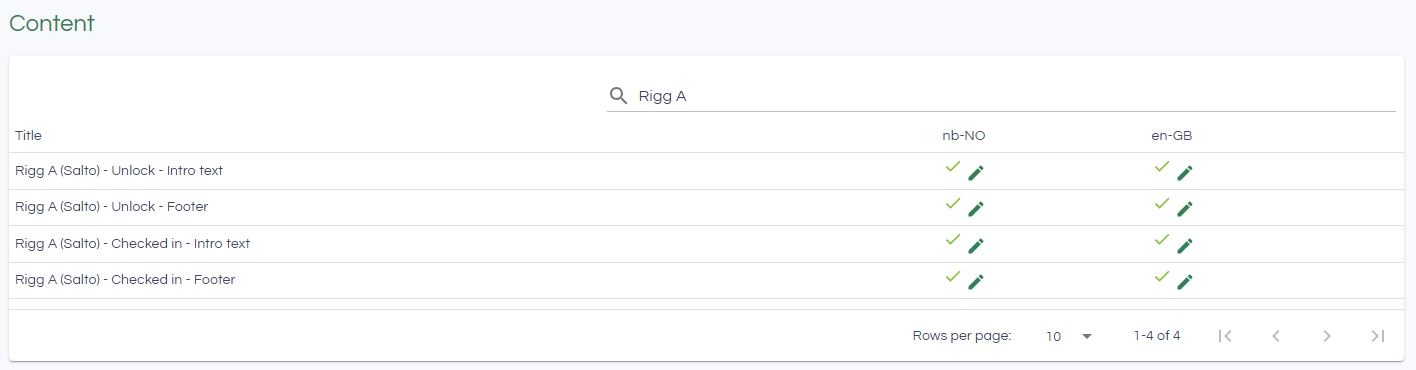
The search box can be used to filter the content, e.g. show everything that belongs to a given rig:
Click the pencil to edit contents
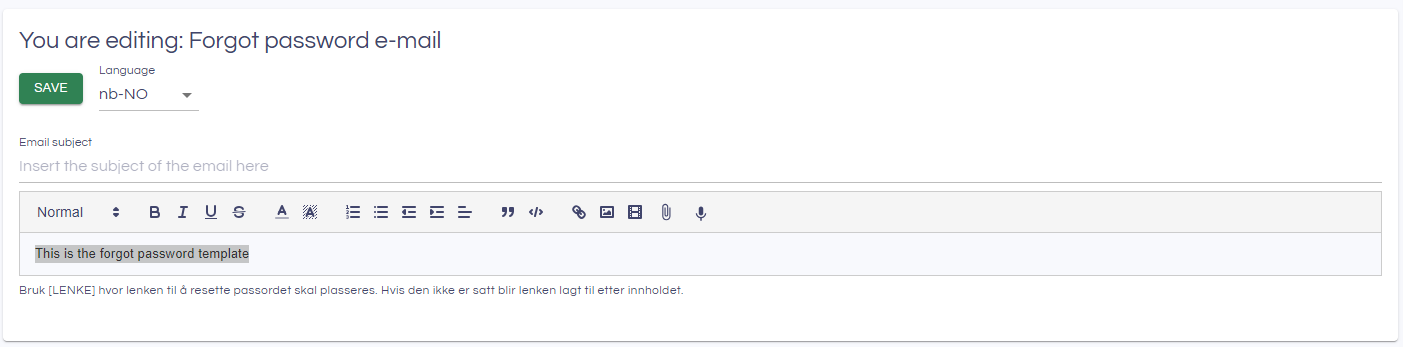
You can easily switch between the relevant languages that have been set up. Remember to click Save. The content is immediately used in the solution.
Using links
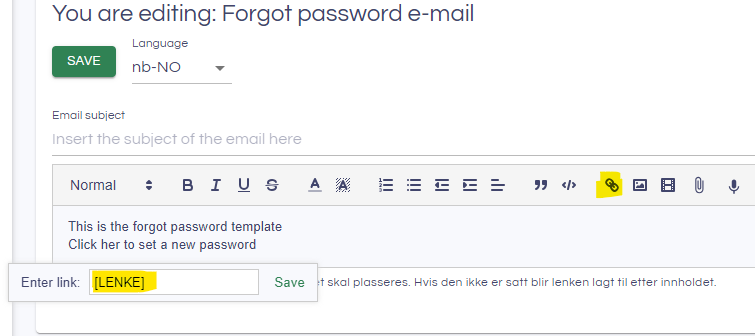
For some of the content types, links can be included e.g to to open a Forgot password page for the user. These should be included in a link in the content editor: