
Edit users
Under Setup->Users, you get an overview of users who have access to InfoCamp for the location.
Overview
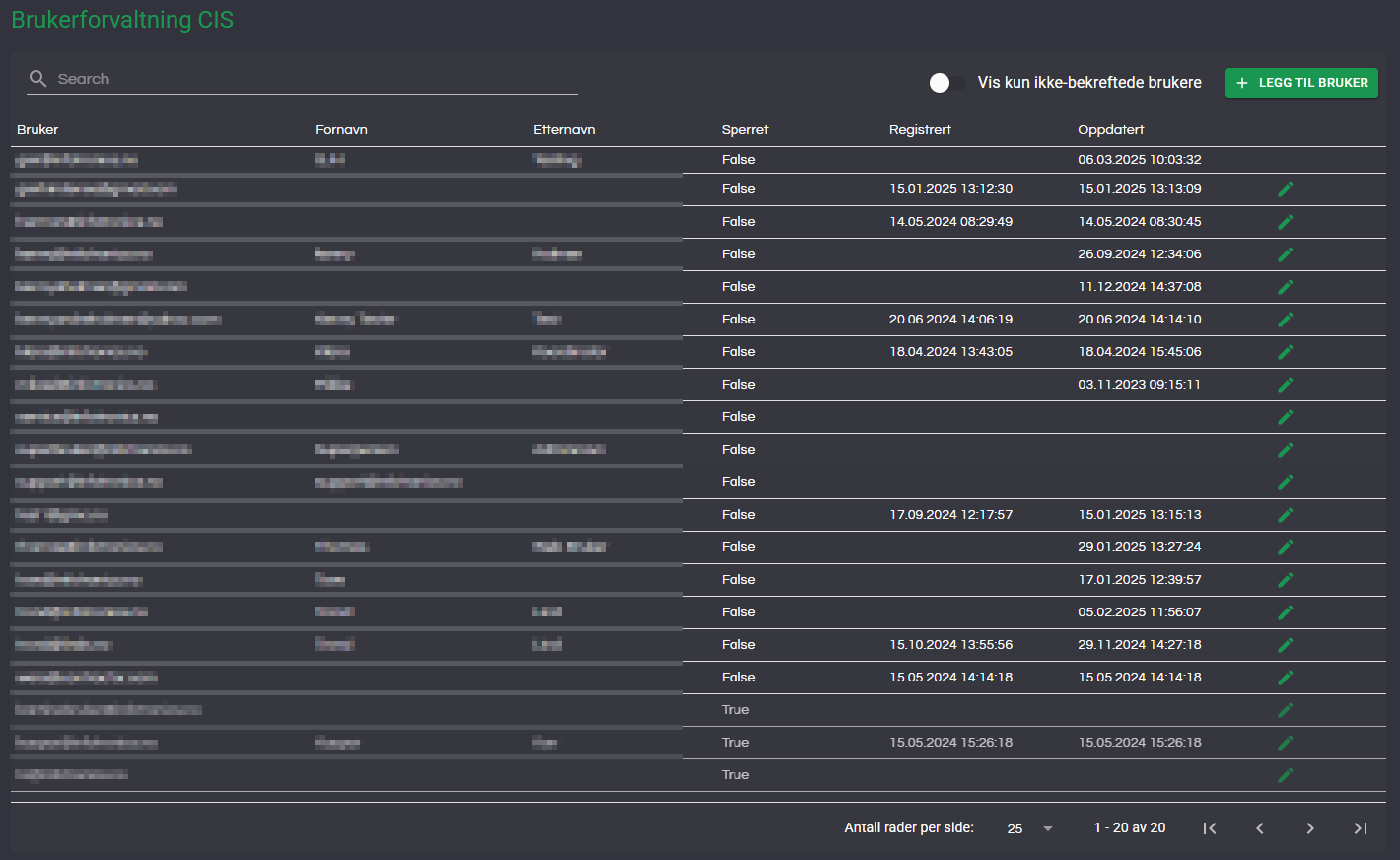
You can search by typing search terms (e.g., email address) into the search box and pressing Enter.
By selecting Show only unverified users, you get an overview of users who have not yet been confirmed. These are, for example, users who have registered on Web booking for the location, but who have not yet been approved by you at the location.
By clicking the pencil icon on a user, information about the user can be edited. Click + Add user to create a new user.
Add user
When you click Add user, you must enter the email address of the new user. Click Add user to go to the detail view as described below.
User details
In this view, you edit user details.
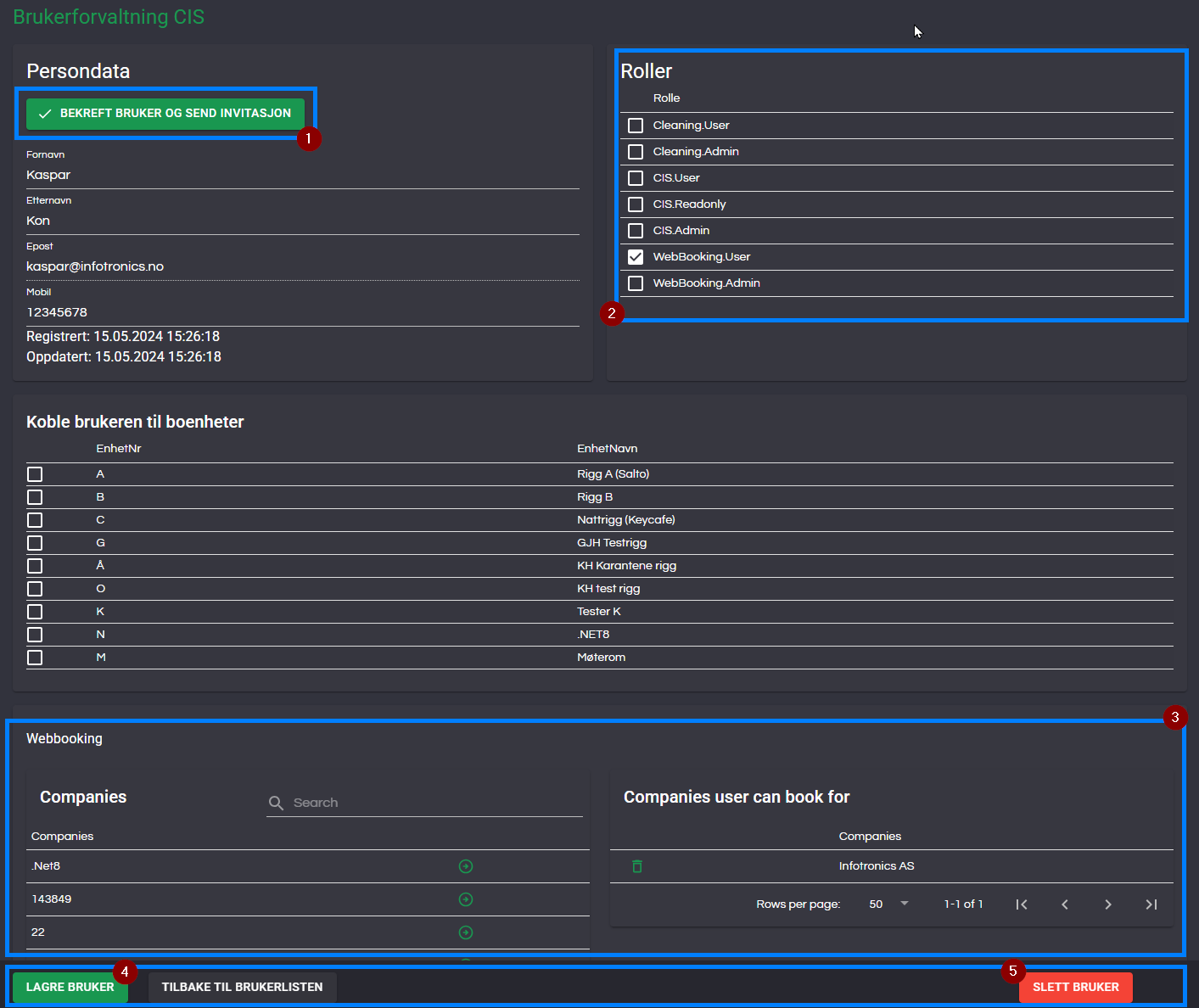
Confirm user
For unverified users, the 'Confirm user and send invitation' button (1) will be displayed. When this button is pressed, an email will be sent to the user with a link to set a password, so that he/she can log in to the solution. This should be done after roles have been set up correctly.
First name, Last name, and Mobile number can be changed; Email address cannot be changed.
Roles
Under roles (2), you can see available roles in the solution and select which roles the current user should have.
Role | Description |
Cleaning.User | Access for cleaner with Room Cleaning. Will only see Room Cleaning in the left menu |
Cleaning.Admin | Access for cleaning manager. Will see the same as Cleaning.User, and additionally the menu item Housekeeping under the main menu. |
CIS.User | Limited user with access to a simple booking list without being able to make changes |
CIS.Readonly | Limited user with access to retrieve a report on rooms and residents. Typically used for security guards, night watchmen, etc. |
CIS.Admin | Full access to the entire InfoCamp CIS |
WebBooking.User | Coordinator at customer locations. Can submit Web booking requests to the location. |
WebBooking.Admin | Same as WebBooking.User, but also has access to change details about their own companies |
WebBooking Access
If one of the WebBooking roles is enabled, an overview of companies (3) will be displayed, where you can select which companies the user should have access to register WebBooking for. All companies are shown on the left; press the arrow button to add them to the list on the right, which are the companies the user can send requests on behalf of.
WBS-based WebBookings
Users can be allowed to create "Internal"/WBS-based bookings when the feature supporting this is enabled by Infotronics:
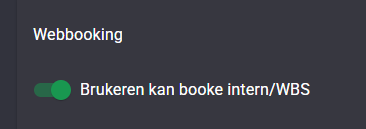
The user then gets the option to choose from the WBSs set up in the system. The user can then choose to create "regular" bookings by checking "External" at the top of the booking page:

Remember to press the Save button (4) to save. The Delete User button (5) deletes the user; this cannot be undone.