Closing of individual rooms
Introduction
In Cis, it is possible to close individual rooms for periods. During this period, the room will be blocked from booking and will not be included in certain overviews and reports.
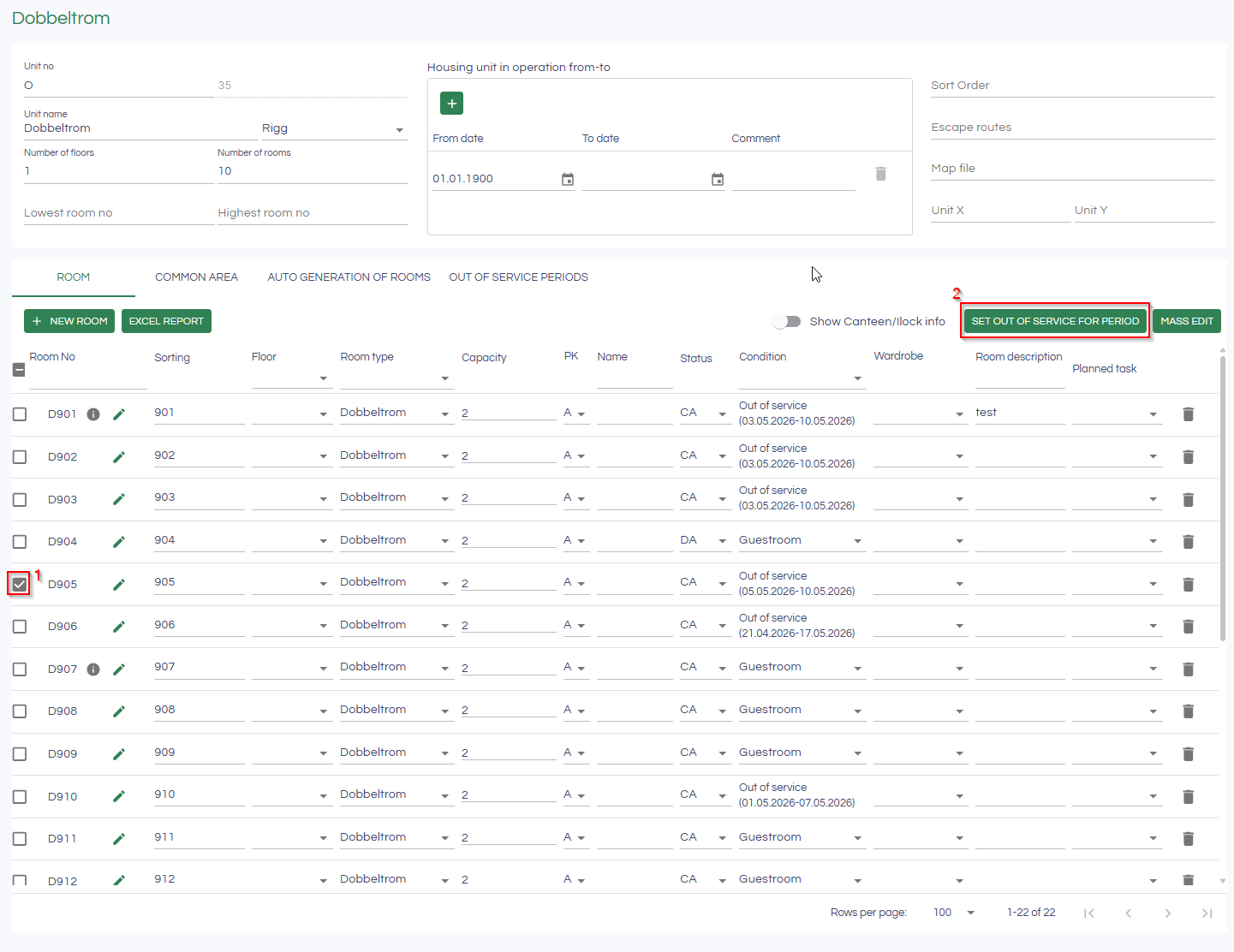
To temporarily take a room out of service, go to the rig where the room(s) are located under Setup => System => Site setup.
Inside site setup, go to the tab Accommodation Units go into the accommodation unit.
Taking rooms out of service
1. Select the room(s) to be out of service.
2. Click on "Set out of service for period"
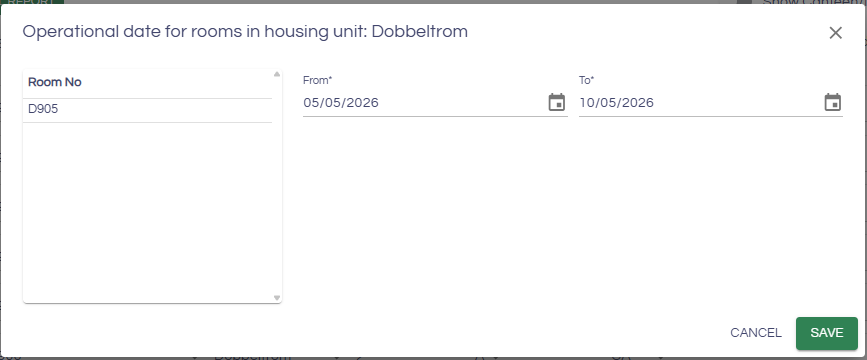
3. select the period the room should be out of service, then click Save (The room is out of service for the entire period, i.e., from From date until To date
Overview of rooms out of service
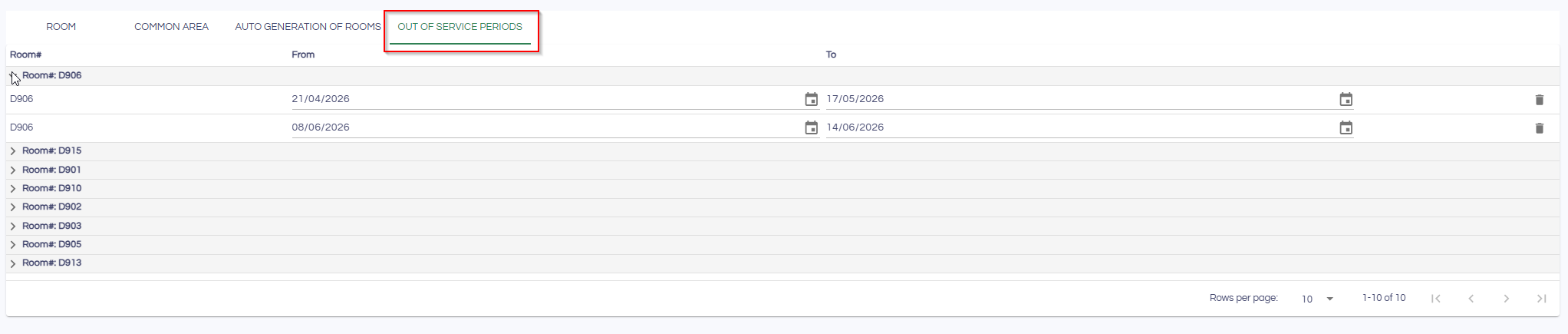
You can see all rooms that are temporarily out of service under the tab Out of Service Periods
; there you will see a list of all rooms that have had or have periods out of service; to see specific information, click the arrow to display details about a specific room.
You can also see an overview of when a room is out of service within the room itself:

What is affected
New booking
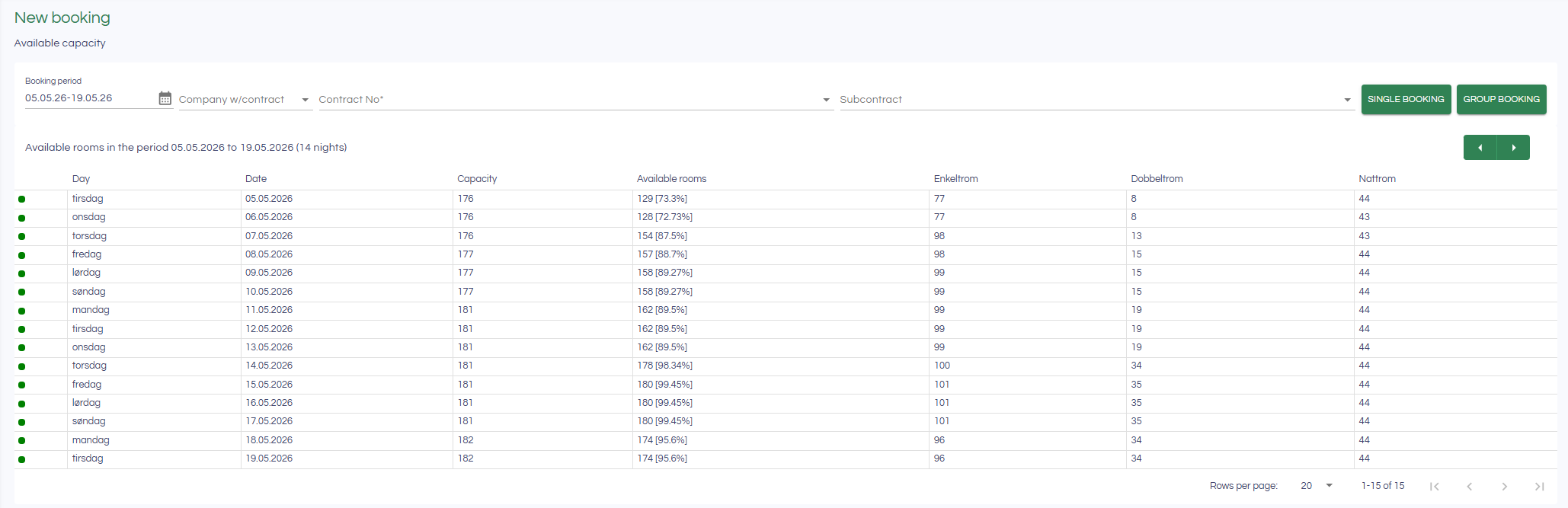
Capacity will decrease during the period the room is out of service, the number of available will also change, and the number for the room type will decrease.
Booking overview
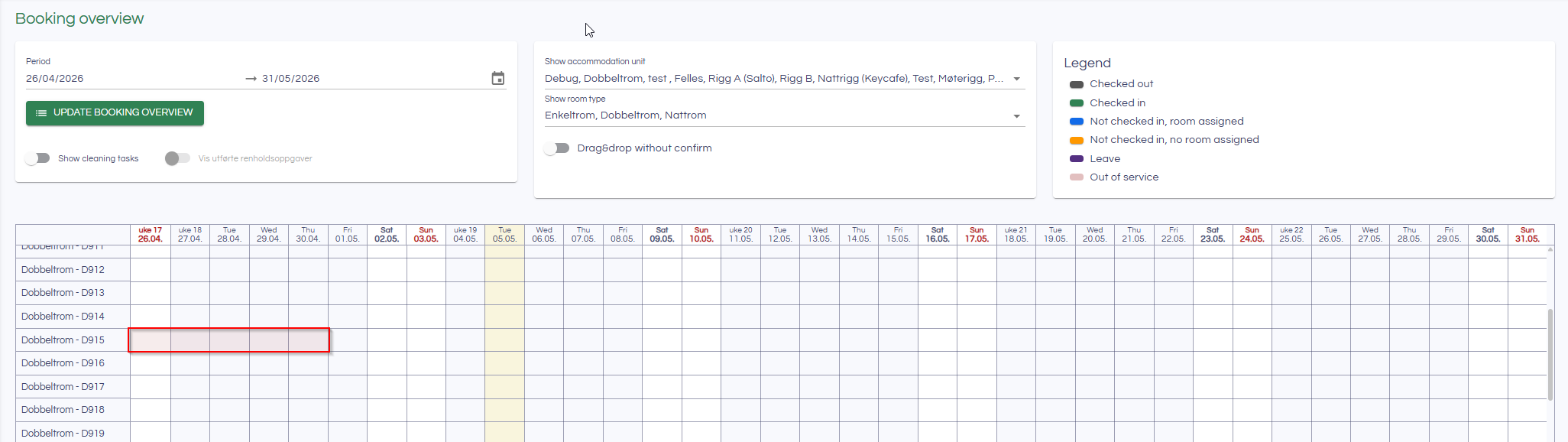
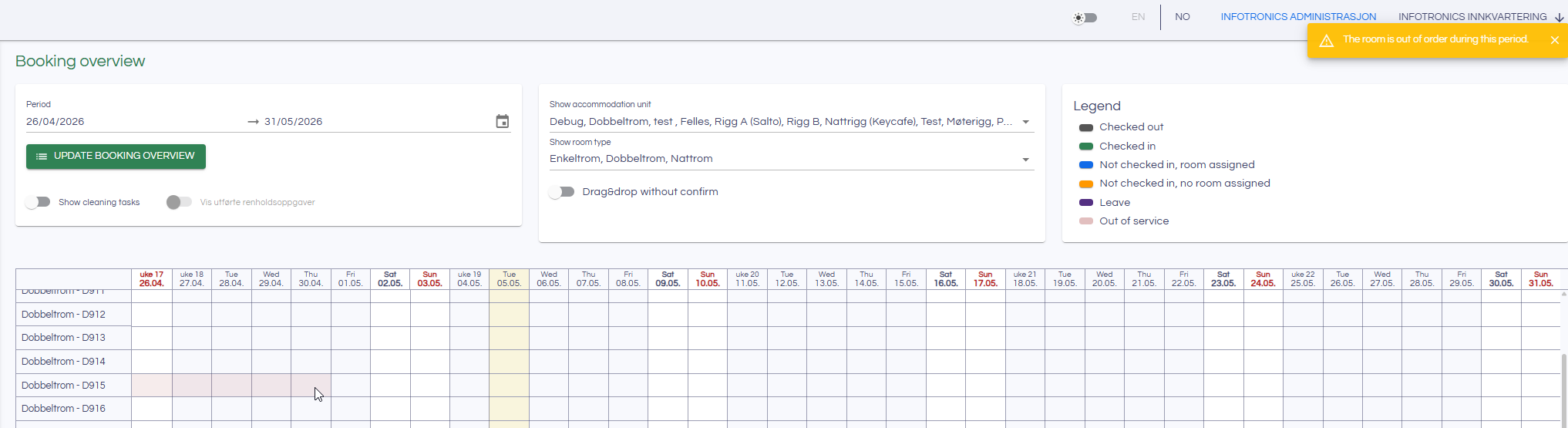
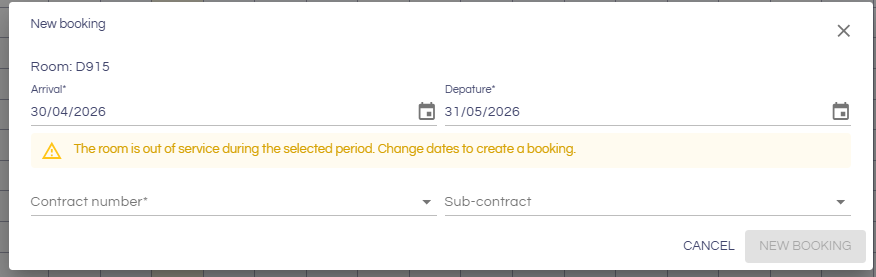
Rooms that are temporarily out of service will still be displayed in the booking overview. The period that is out of service will be marked with a red color, and it will not be possible to enter a booking in that period by clicking or drag and drop.
Meeting room overview
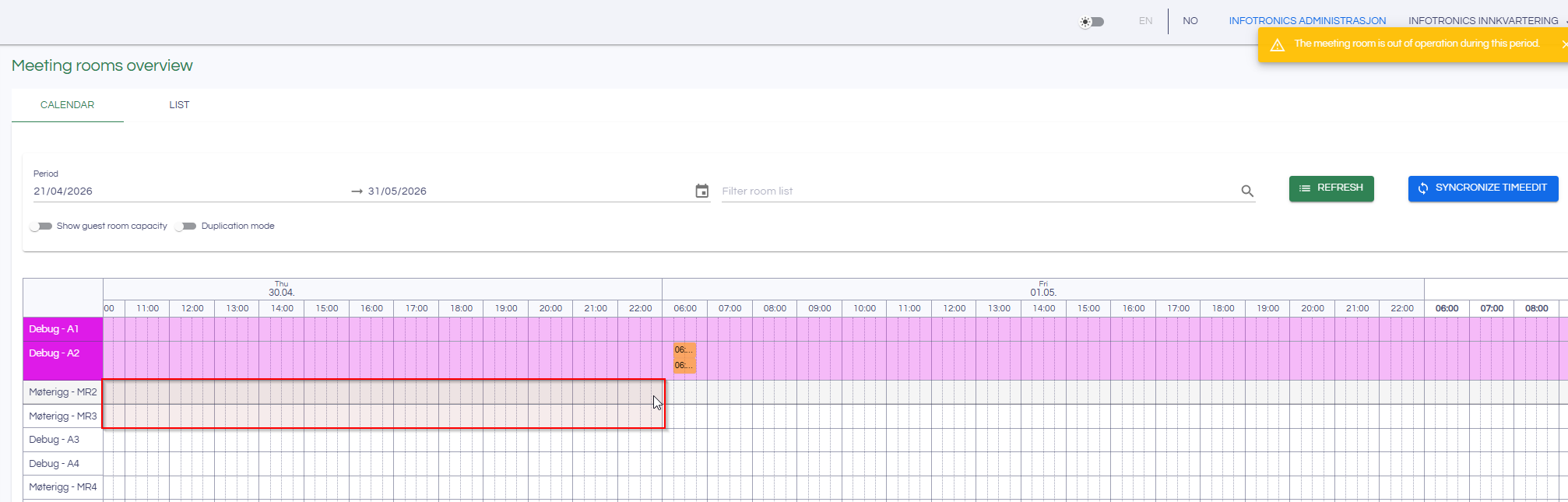
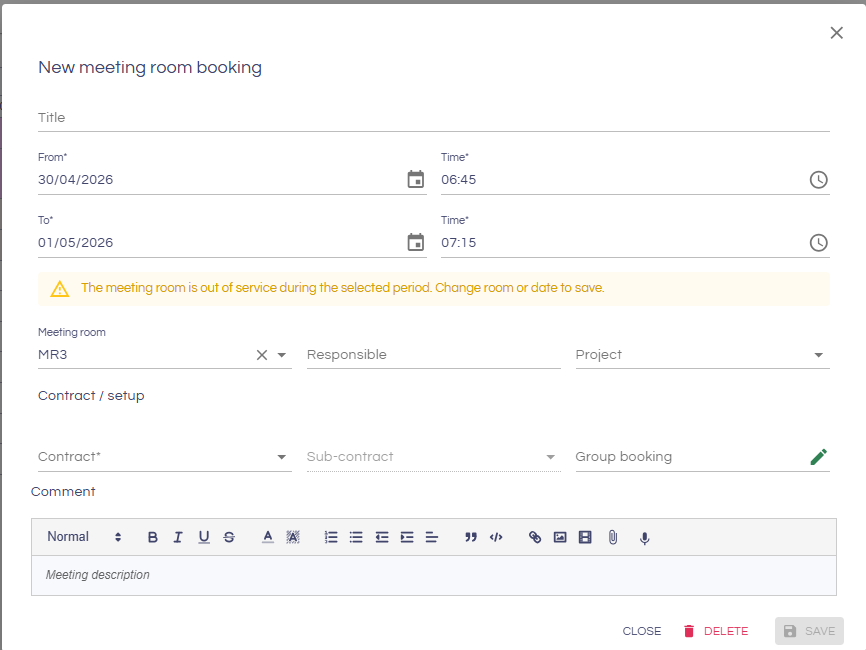
functions similarly to the booking overview with red marking; meeting room bookings cannot be created during the period the room is out of service.
Booking
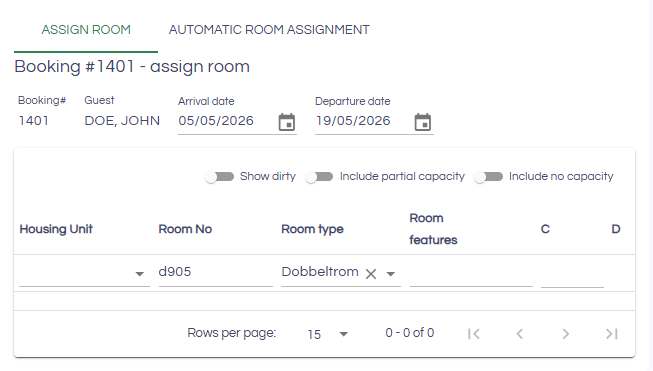
If the room is closed during the booking, the room will not appear when assigning the room.
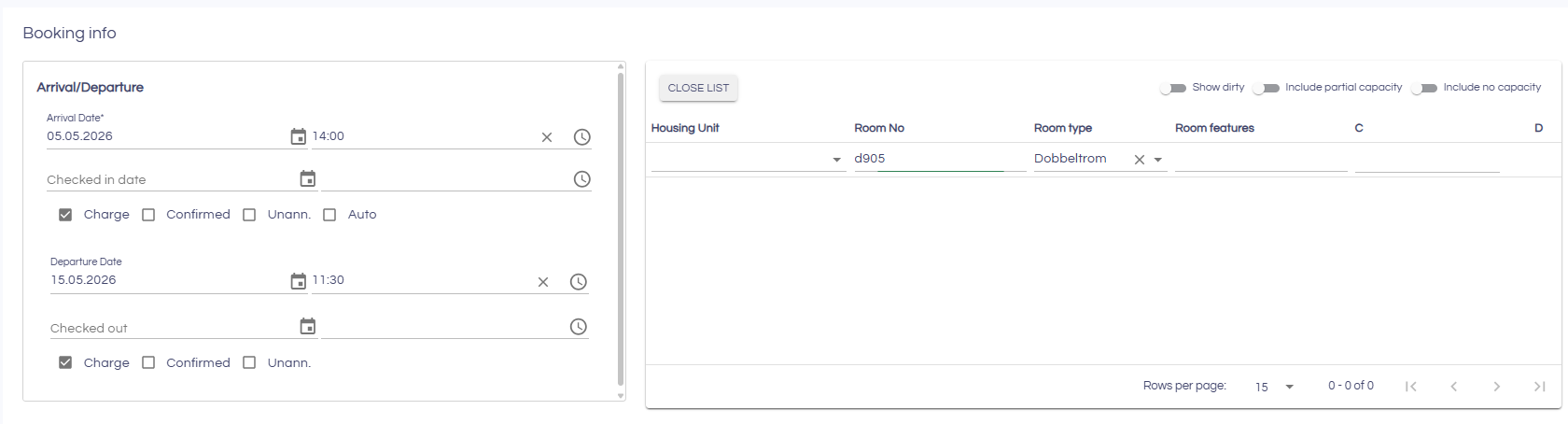
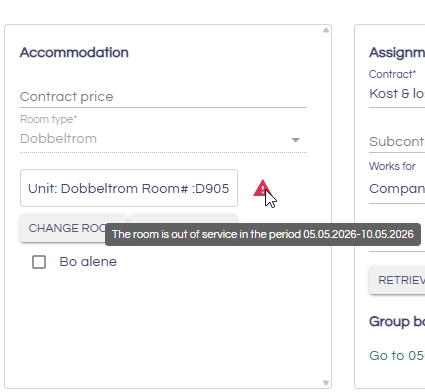
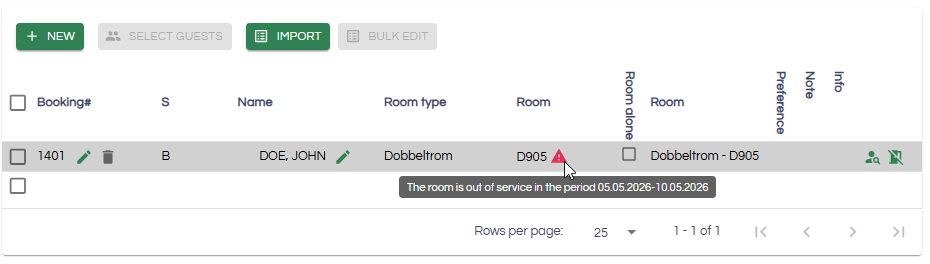
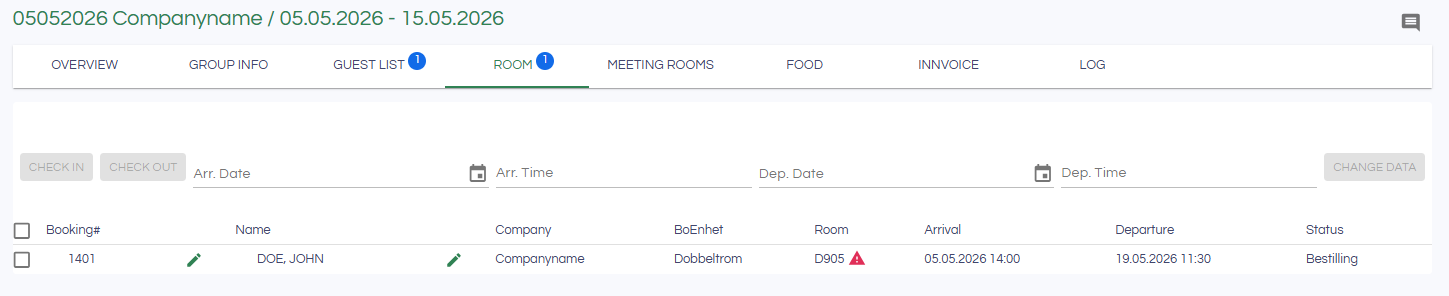
If you change the date of a booking with an assigned room that is out of service in the new booking period, you will receive a warning; a symbol will be displayed indicating the period the room is out of service.
Group booking
The same applies to group bookings:
Automatic room allocation
The room wil be excluded for bookings where the room would be out of service during the booking period,
Reports
reports showing bed nights in a period will exclude the room during that period, while reports like available rooms and Evacuation list, which are snapshot reports, will not show the room if it is inactive when the report is generated.
Occupancy and CIS Dashboard
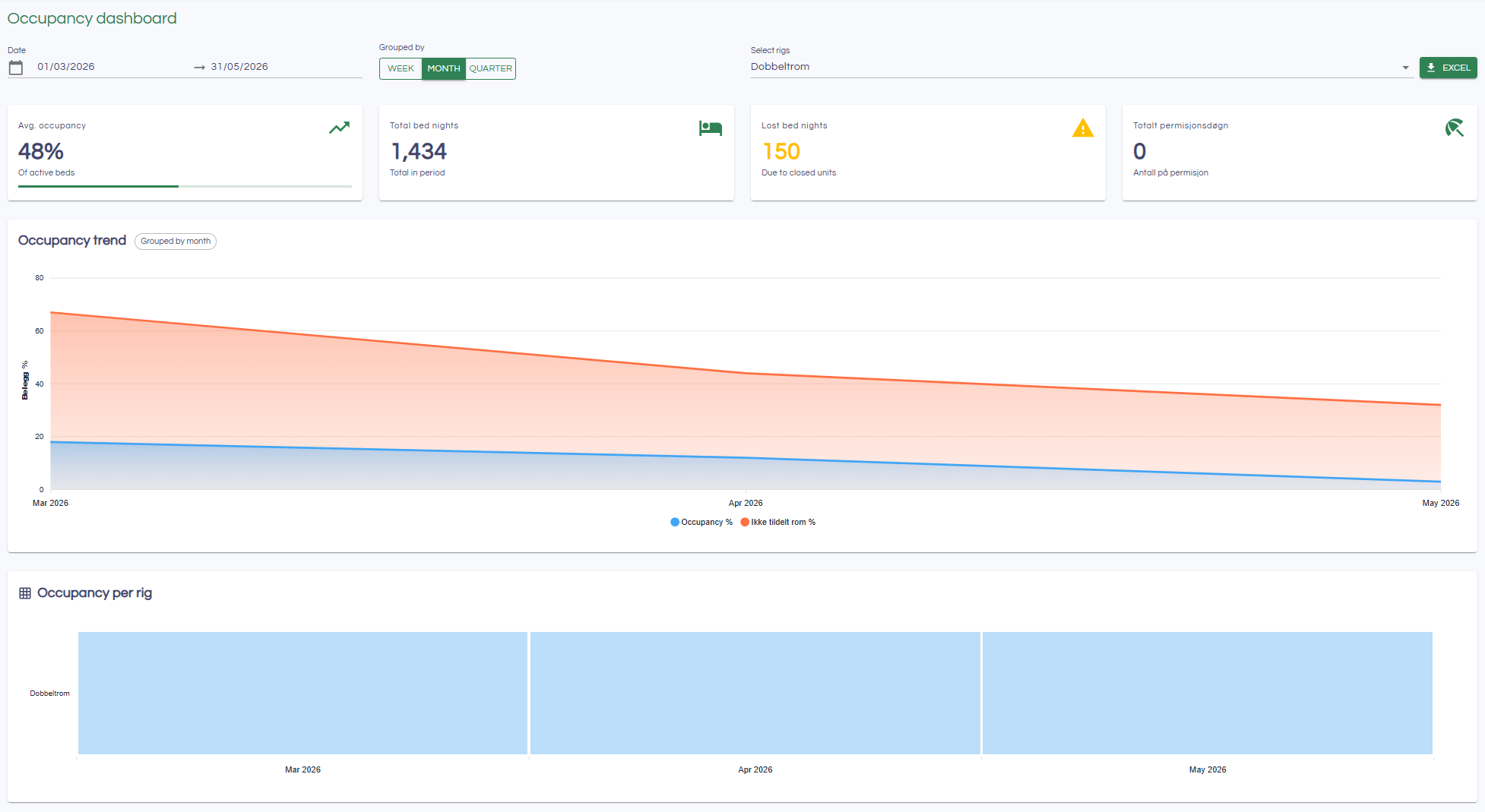
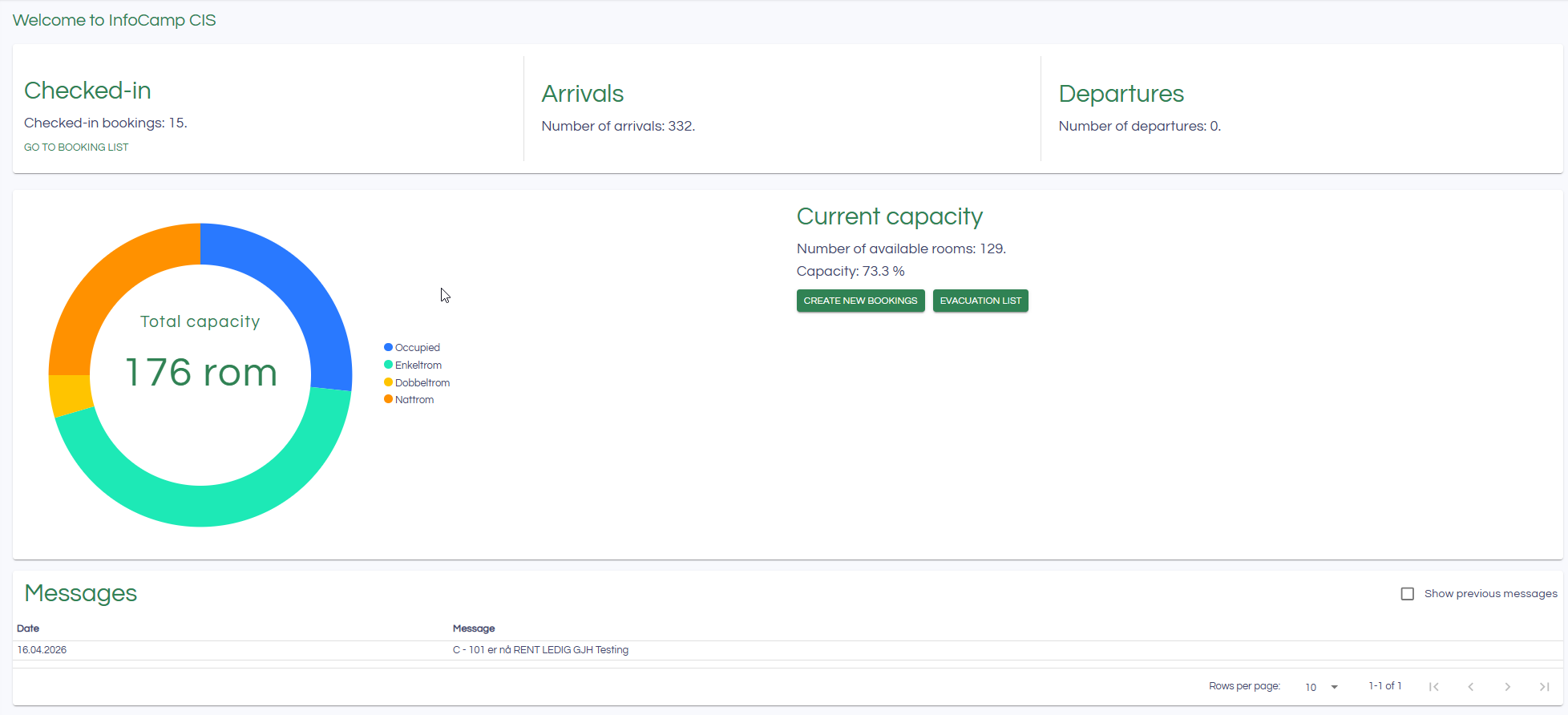
The parameters in the dashboards are automatically adjusted according to rooms that have been put out of service. Capacity will be reduced correspondingly, while lost days of stay will increase.
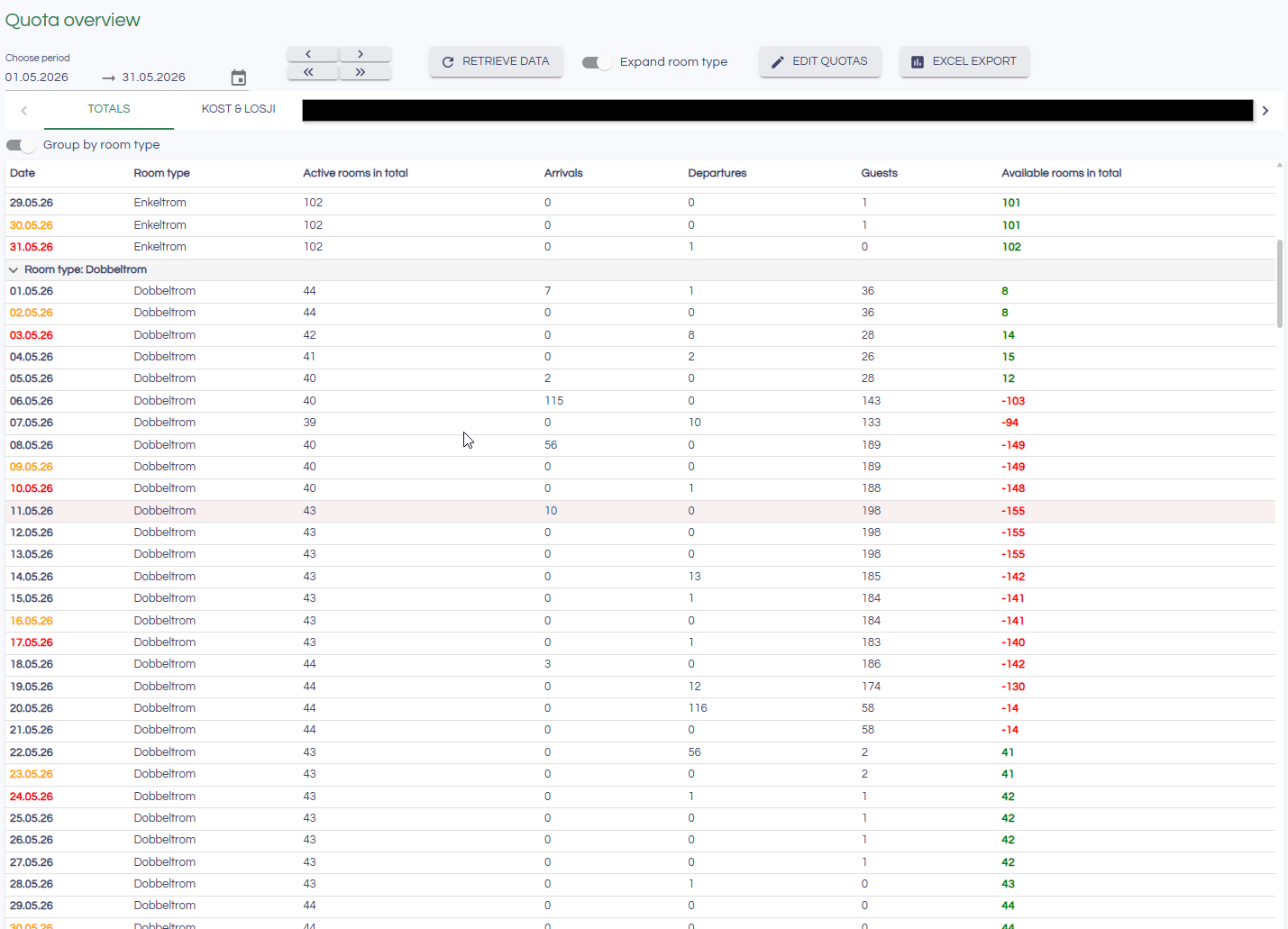
Quota overview
The quota overview is also affected by the changes, the number of available rooms and active totals take into account temporary closed rooms.