
Booking overview
Under Administration => Booking Overview you will find an interactive booking overview.
You can select a from- and to-date, as well as which units to display.

The calendar shows bookings with different color codes depending on their status. The calendar also places unassigned bookings in the list where space is available.
Possible actions in the calendar
- Create new booking
- Change from and to dates
- Change room
- Assign to room
- Split
- Copy
Create new booking
By selecting a specific period on a given room (1 in the image below), you can create a new booking for the room for the period.
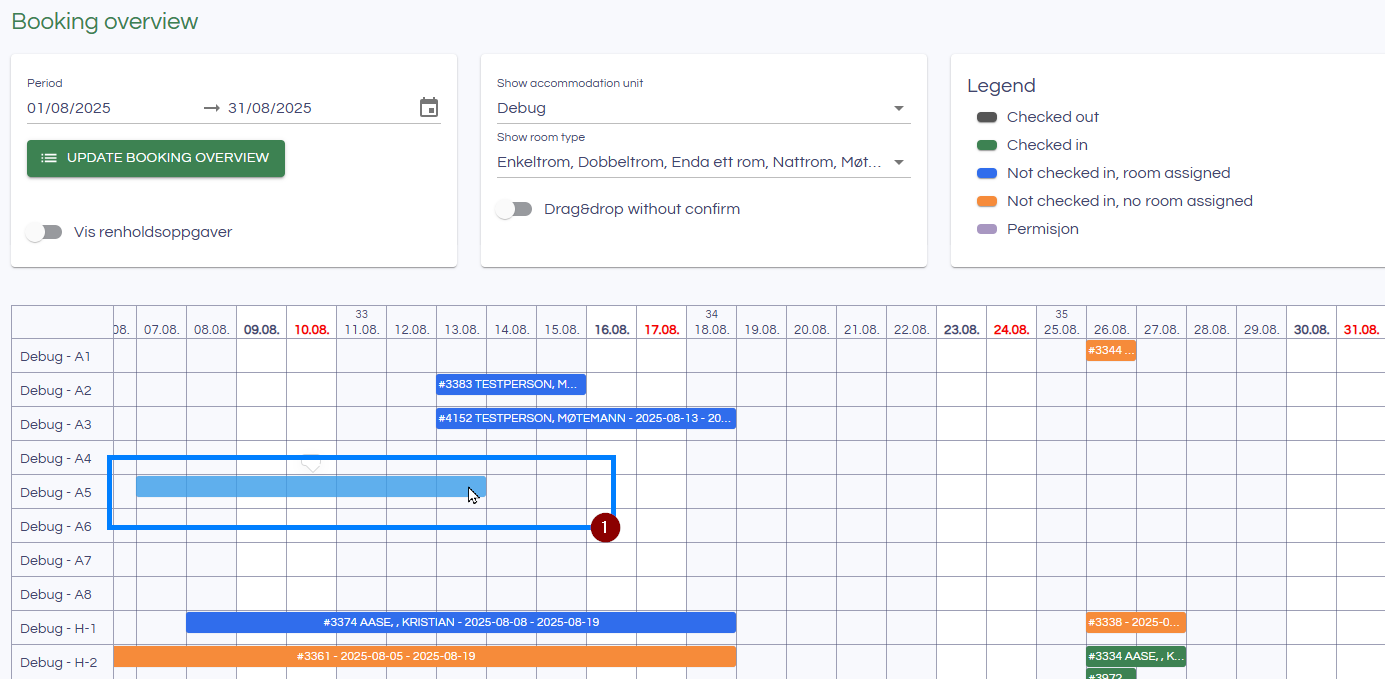
Complete the new booking dialog and guest selection dialog to create the new booking. It is automatically displayed in the calendar:

Overview
When you hover the mouse over a booking, the booking information is displayed.
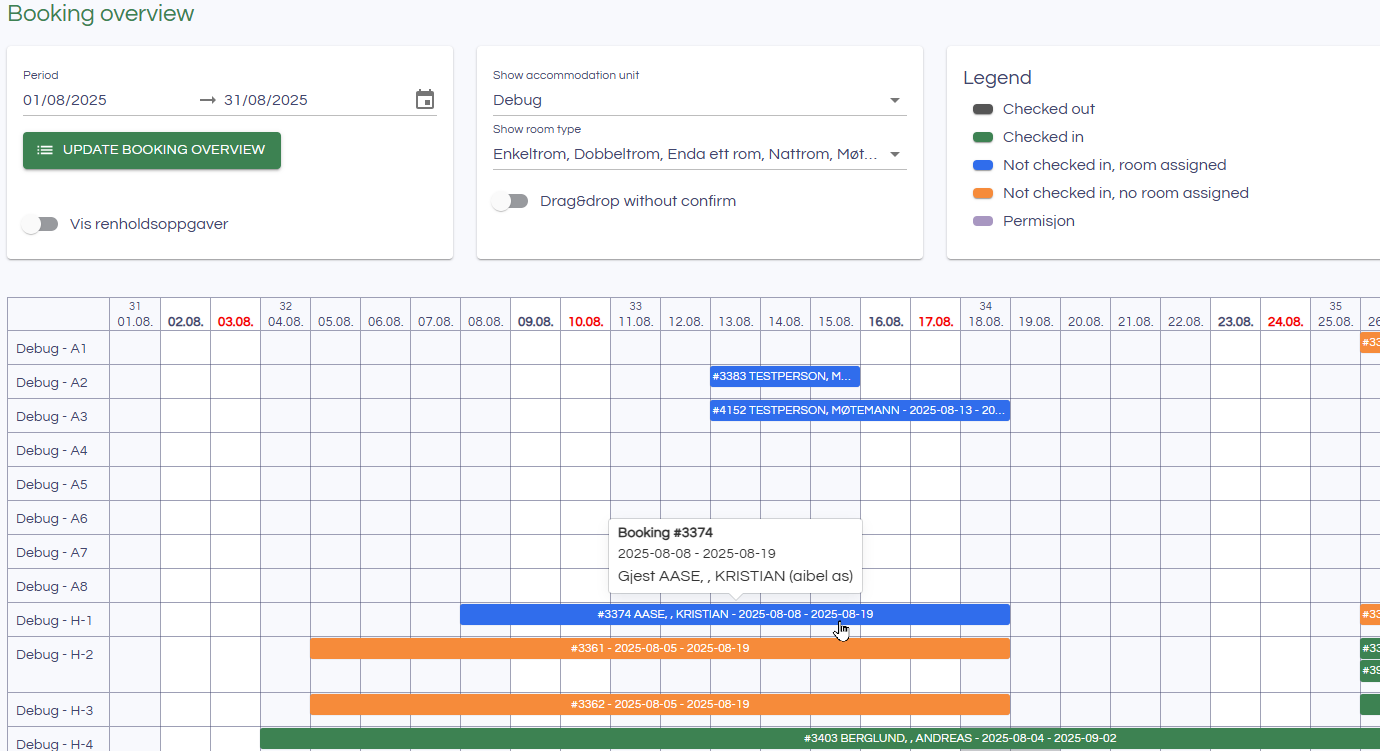
You can drag and drop bookings to both new dates and new rooms. You can also click a booking on a specific day to split the booking on that day.
Unassigned bookings
Unassigned bookings can be dragged and dropped to a suitable room, after which you will be asked to assign it to the room.
Click on assigned booking
When clicking on an assigned booking, you can choose to edit the booking or split it on the selected day. Checked-out bookings cannot be changed.
Drag and drop
Bookings that are checked in or pending can be dragged and dropped to change data or to create a copy of the booking.