Companies
Overview
Under Administration->Companies you will find the company list. This is an overview of all companies that have guests in your camp. It is worth noting that Webbooking users with access to the company can edit basic information about their company in a similar view, including PO numbers.
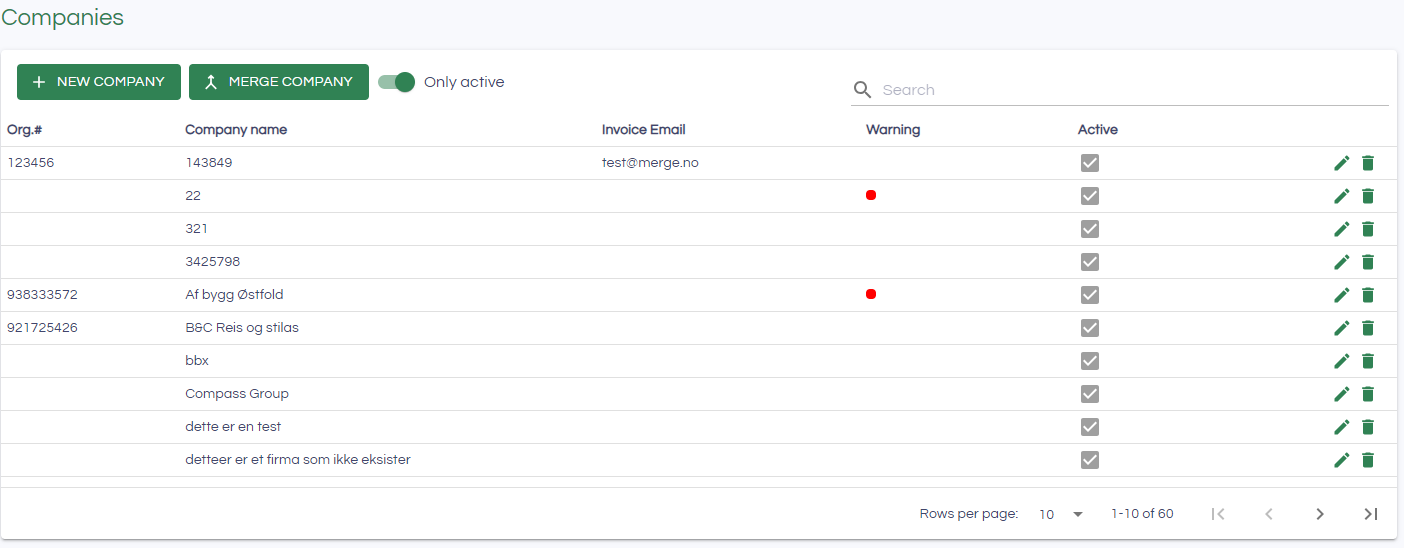
Companies can be added, edited and deleted from the company list. If there is a warning on the company, it will show a red mark under the warning column. If you hover over the red mark, the warning will appear. You can merge two companies with the MERGE COMPANY button.
Edit company
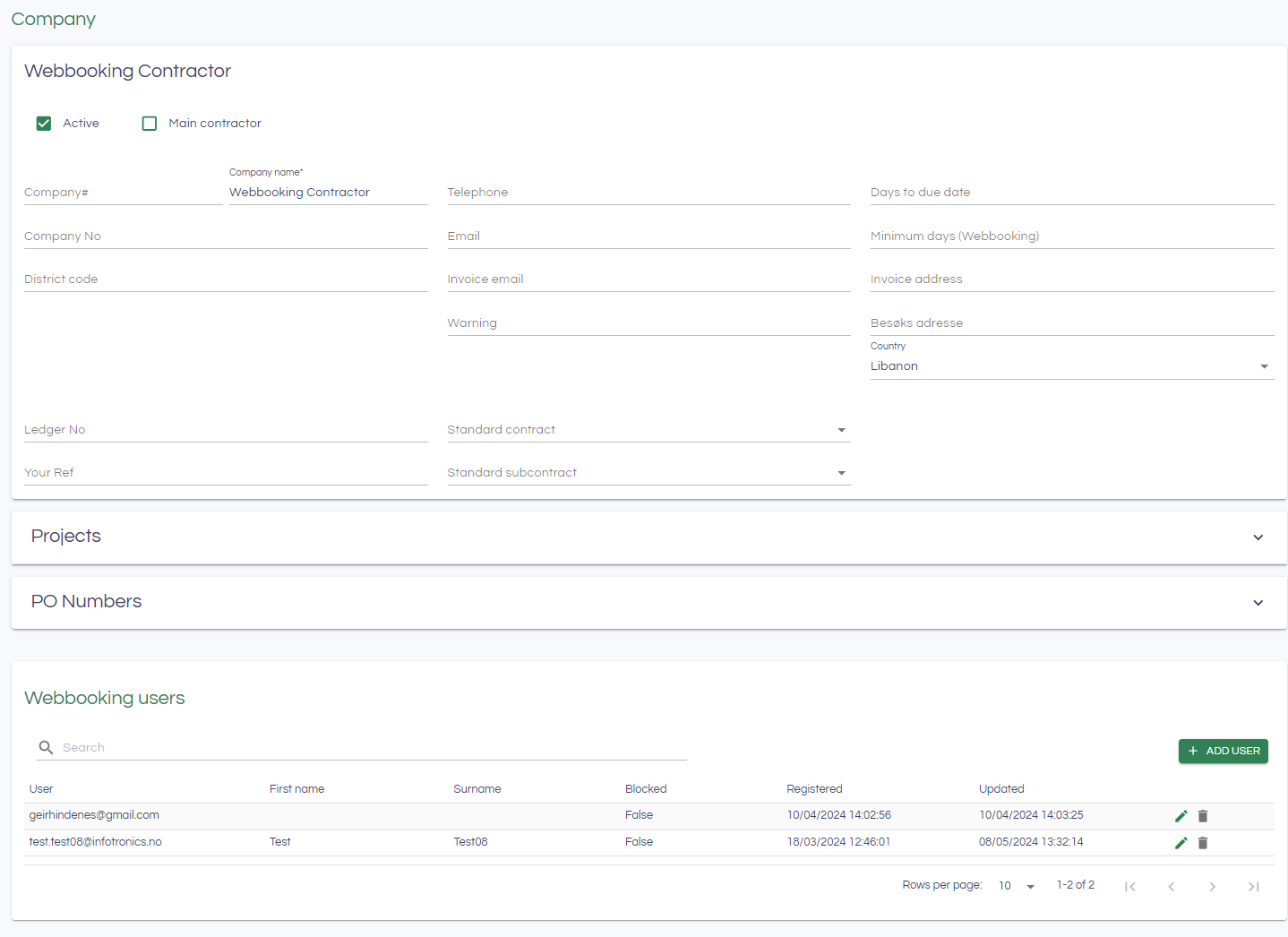
When you go to edit company via the company list, all information related to the company can be viewed and edited.
Projects
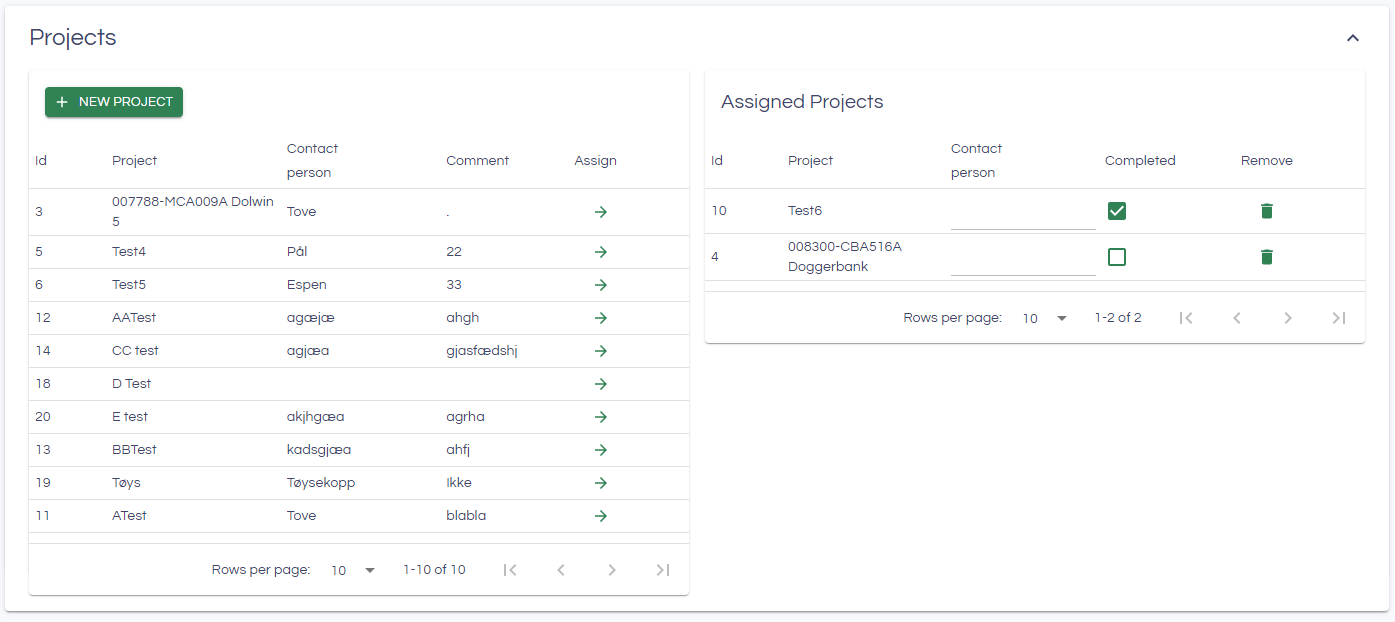
Projects in the camp (from the System->Camp setup->Project tab) can be assigned to the specific comany under Projects section. All active projects that can be assigned will be displayed on the left. Assigned projects to the company has will be displayed on the right.Click on the arrow under Assign to assign the project to the company. The project can be terminated or unassigned(deleted) from the company. If the project is deleted, it will show up on the left hand side again.
PO Numbers
PO numbers are typically used as the internal reference of the bookings within the company. PO Numbers can be managed in the PO Numbers section.
Webbooking users
In this section, users from the company with access to Webbooking can be managed. By pressing Add user, you can add more users to this list. The pencil and delete buttons are used to edit and delete the user.

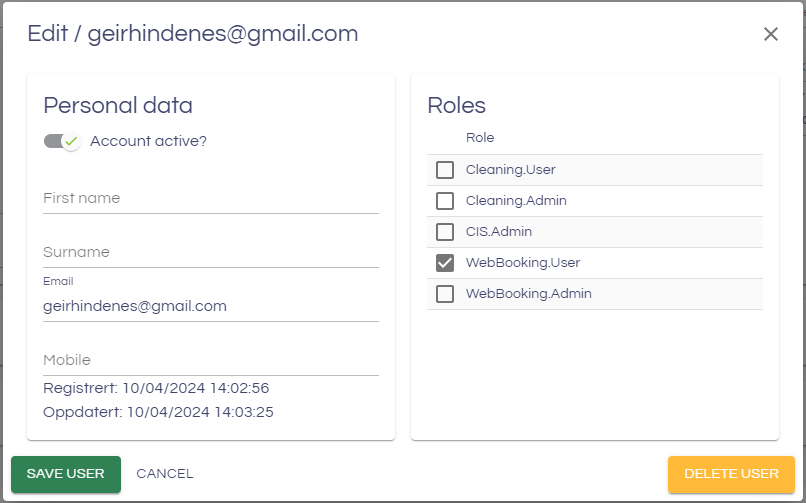
Edit users
WebBooking.User is the correct role for regular Webbooking users.
New users
New Webbooking users can be added to the company. There is another way of adding new users as well, by letting them register themselves as described in this article:
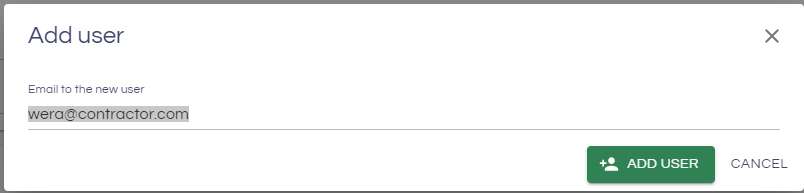
To add new users, click the ADD USER button.
- Fill in the Email to the new user
- An invitation email is automatically sent to the new user where he/she has to click a link to activate the account.
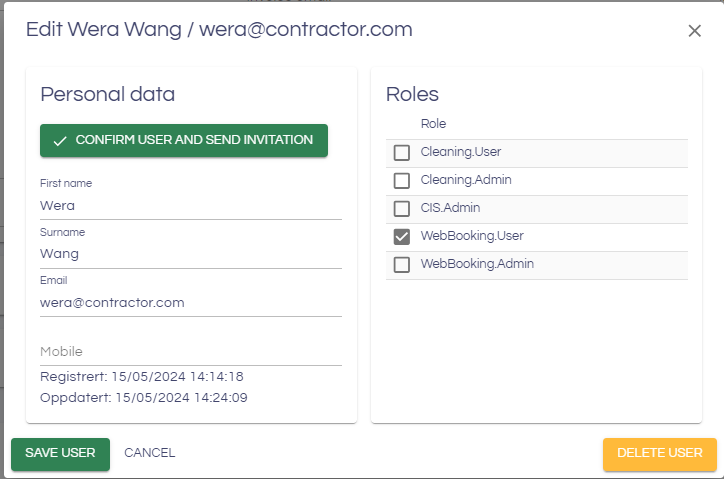
- Fill in the rest of the details for the user. Edit the new user by clicking the pencil icon:
- Enter the First name and surname for the user, and assign the Role Webbooking.User:
- The user has already been sent the invitation mail, so there is no need to click Confirm user and send invitation.
Instead, click the Save user to save the details.

Merge companies
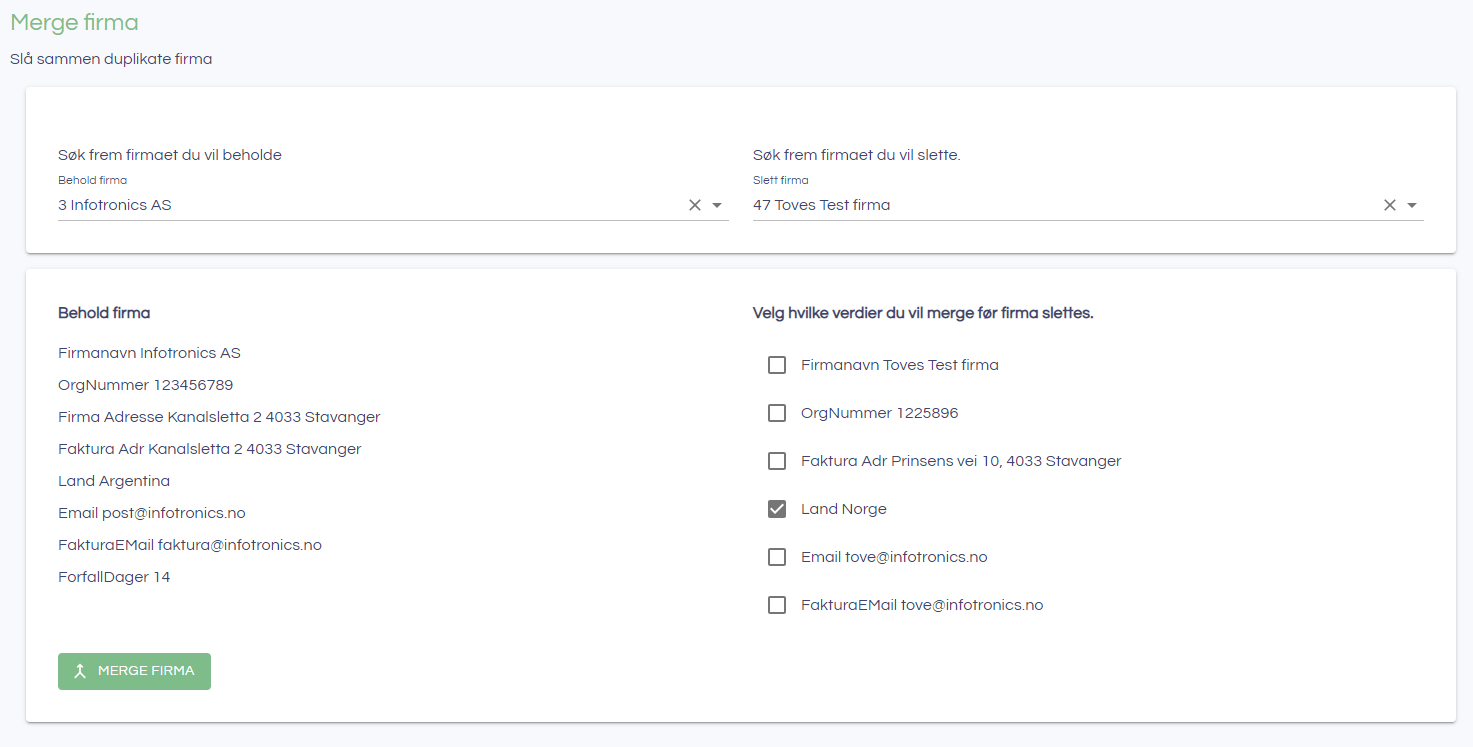
Find the company you want to keep (the Keep company) in the left hand search field. The values that exist on the company are listed under Keep company. Find the company you want to merge and delete (the Delete company) in the right hand search box. The fields that are different from/not found in the Keep company are listed as choices. Select any fields you want to move over to the Keep company.
Press Merge company to execute. The selected information will be moved to Keep company and the Delete company will be deleted.