
Content management v2 (BETA)
Manage content
Under Administration->Content, you have the option to adjust content that is used in communication with users and guests.
We connected InfoCamp to a feature rich external content management system (CMS).
The contents in InfoCamp is split into 4 areas:
Here's the English translation:
- Guest Portal Framework - basic texts for the guest portal: header and footer for the login page, terms and conditions for the stay (if applicable), information message after checkout
- Accommodation Unit Texts - header and footer that can be used for different accommodation units - the same text can be displayed on one or more accommodation units
- Email and SMS - text templates for email and SMS related to the guest portal and other users (e.g. invitation email for users of the web booking feature)
- News and messages - optional - content shown to guests on the landing page in the guest portal
The Squidex interface
We have created a "loose" link to Squidex - we make it easy for InfoCamp users to open the correct content for editing in Squidex, but we have not restricted or changed Squidex. This allows you to navigate freely in Squidex after you have selected content to edit or chose to create new content.
For changes from Squidex to be displayed in InfoCamp, use the green reload button:
Next to the reload button is the blue button for previewing the guest portal.
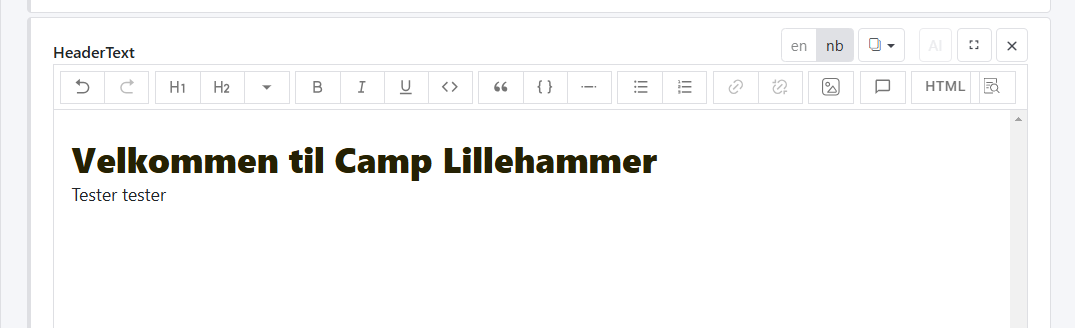
Squidex uses a feature-rich text editor to allow the user to edit the content.
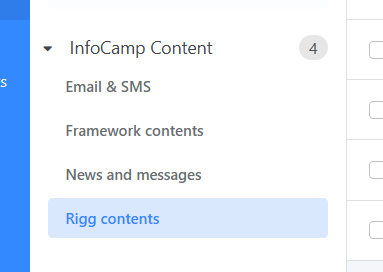
All content is accessible via the left-hand menu in Squidex:
Guest Portal Framework
Here you can set the standard texts used in the guest portal:
- header and footer on the login page,
- optional stay conditions
- information after check-out
Texts for accommodation units
Here you set up headers and footers for the different residential units. Each text here can be linked to one or more residential units. You edit the headers and footers for both states at the same time:
- first login
- checked-in
Email and SMS
Here you set the content for emails and text messages sent to guests. Here you also set the text used for invitation emails to e.g. Webbooking users and for forgotten password emails (this applies to both InfoCamp and Webbooking users).
Use of links
For some of the content types, links can be included, e.g. to open the Forgotten Password page. These links should be added using the link button in the content editor:
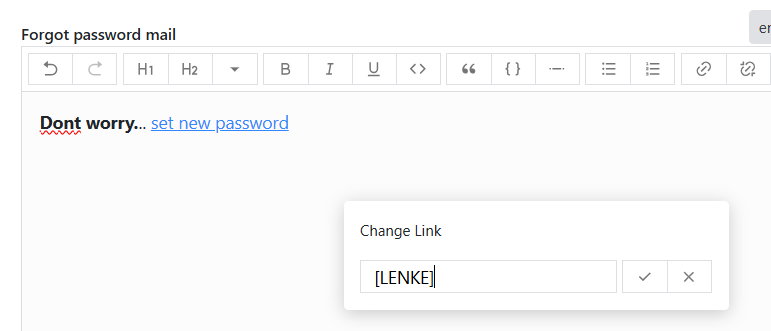
The correct value to insert in link is described under each field. Here, [LENKE] is replaced with the link to set a new password.